
TL;DR: If your GPU runs too hot, you might hear noisy fans, see FPS drops, or even face unexpected black screens. This guide shows you simple fixes to keep your GPU cool and your gameplay smooth.
Have you ever noticed your GPU getting hot during a long gaming session? When your GPU overheats, it can slow down performance and reduce its lifespan.
Common signs include noisy fans, sudden drops in frame rates, and even black screens. These symptoms point to a stressed GPU that needs some attention.
In our guide, we explain easy fixes like cleaning the dust buildup and adjusting the fan curves. By following these steps, you can quickly lower your GPU's temperature and enjoy more stable performance.
Remember, a cooler GPU means a better gaming experience and a longer life for your card.
Diagnosing GPU Overheating: Symptoms and Quick Fixes
Long periods of high heat can lower your GPU’s performance and shorten its life. When your GPU runs above 85°C to 90°C (185°F to 194°F), it’s working too hard during gaming or rendering sessions. Keeping temperatures between 65°C and 85°C (149°F to 185°F) helps maintain smooth operation and prevents performance slowdowns.
Here are some signs your GPU might be overheating:
| Symptom | What It Means |
|---|---|
| Excessive fan noise or high RPM alerts | Your cooling system is overworking to keep up |
| In-game thermal throttling warnings | The GPU is reducing speed to lower heat |
| Spontaneous driver crashes or black screens | Heat is causing instability in your graphics card |
| Noticeable FPS drops on similar tasks | Performance is being limited by high temperatures |
| High temperature differences between idle and load | The GPU struggles to manage heat under stress |
| Issues with overclocking utilities | Thermal limits disrupt your custom settings |
To keep your GPU in check, start by running a reliable tool like HWInfo to monitor temperatures in real time. Adjust your fan curves so the cooling system ramps up when needed. Also, clean out any dust from fans and vents, as buildup can block airflow. These simple steps help stabilize your GPU’s temperature and keep performance steady during heavy tasks.
Core Causes of GPU Overheating
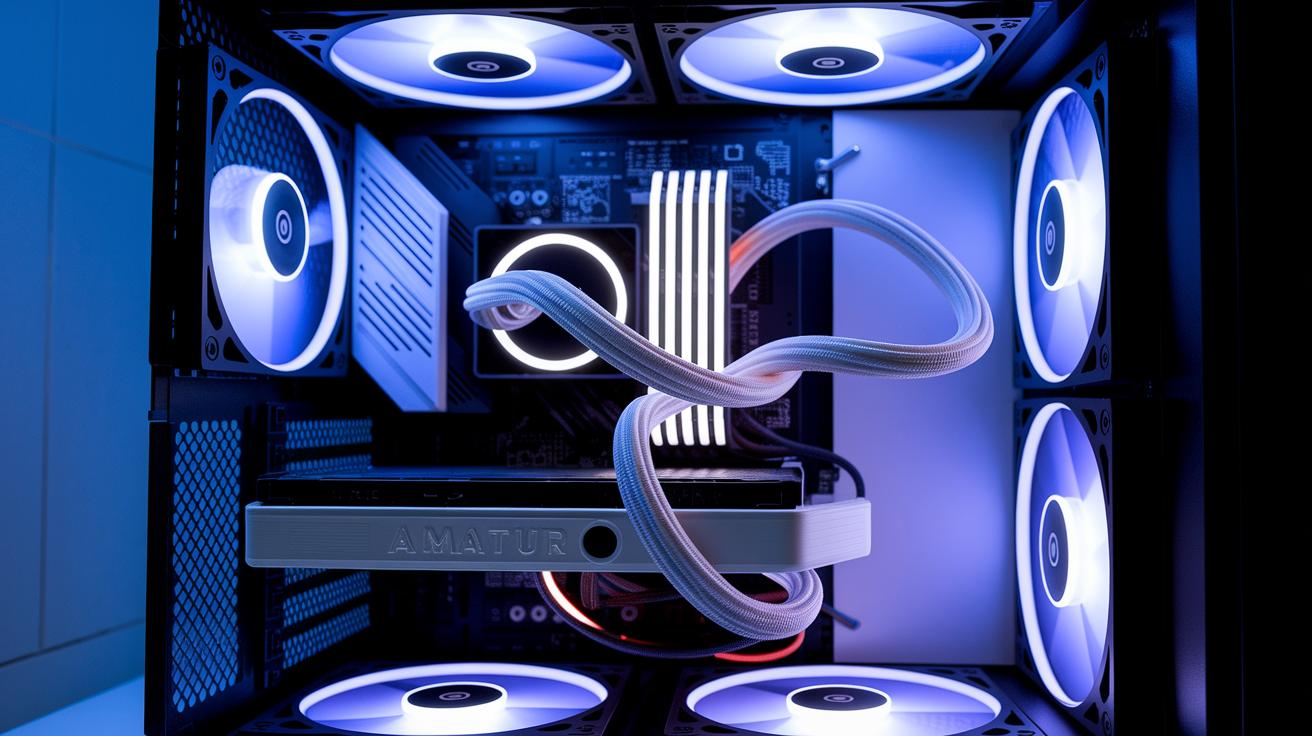
High GPU temperatures usually happen when a few common issues join forces to keep your system from cooling properly. Dust can settle over time, blocking vents and slowing down the fans. Likewise, old thermal paste loses its power to pull heat away from the chip. Overclocking, while boosting performance, pushes up both power use and heat production. A tight case with messy cables can trap hot air, and warm room temperatures make it harder for heat to escape.
| Cause | How It Increases Heat |
|---|---|
| Dust buildup | Slows fan speed and limits airflow |
| Thermal paste degradation | Reduces ability to move heat from the core to the heatsink |
| Overclocking | Increases power use and turns up heat levels |
| Poor case airflow | Traps warm air around your GPU |
| High ambient temps | Lessens the temperature difference needed for cooling |
To figure out what’s causing the heat, use diagnostic tools. Running a hardware monitor can show if dust is slowing your fans, and a quick look inside might reveal dried-out thermal paste or overly aggressive overclocking settings. Also, check your case’s air flow and room temperature to spot any hot spots. By spotting these factors early, you can apply simple fixes that help keep your GPU cooler and your system running smoothly.
Monitoring GPU Temperature: Tools and Best Practices
When you start your computer, press keys such as F2, DEL, F12, or ESC to open the BIOS/UEFI snapshot. This screen gives you a single temperature reading to show your system's status at that moment. It sets a baseline but does not update during active use. For a real-time view of your GPU's performance during gaming or heavy tasks, you need a tool that constantly monitors changes.
Programs like HWInfo, GPU-Z, and MSI Afterburner keep track of both core and memory temperatures. You can set these tools to display the data on your screen or in a taskbar widget. For example, turning on the in-game overlay in MSI Afterburner lets you see live temperature changes without leaving your game. This makes it simple to spot any sudden spikes.
A typical desktop idles at around 50°C, while a gaming laptop can idle near 75°C. Under heavy load, temperatures will increase. It is smart to use these tools to compare idle and load readings and to set up custom alerts if temperatures approach 85°C. This early warning can help you adjust cooling before performance drops or hardware gets damaged.
GPU Cooling Hardware Upgrades
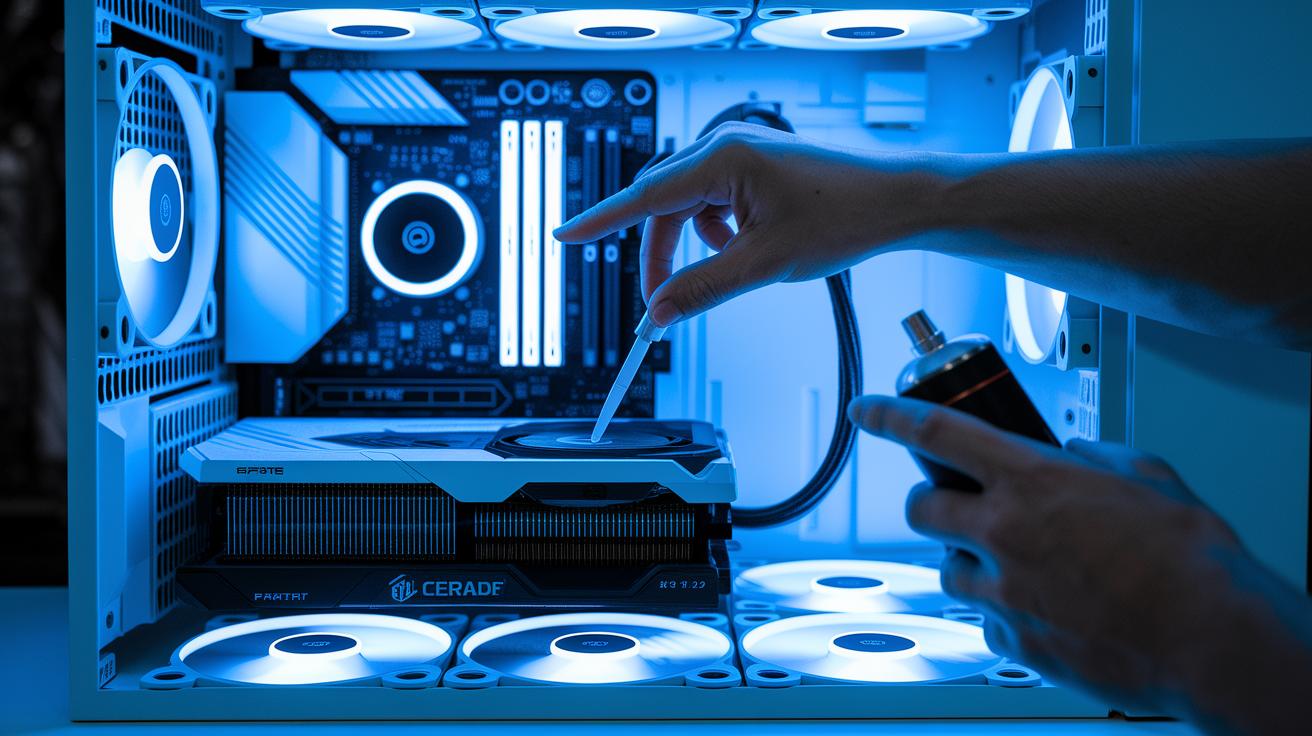
Upgrading your GPU cooling setup can really help lower temperatures and keep performance steady even during heavy loads. Making a few physical tweaks not only gets rid of excess heat but also improves the overall airflow in your case.
Dust Removal & Thermal Paste Renewal
First, grab a can of compressed air and blast the dust out of your fans and vents. Once everything is clean, remove the old, dried-out thermal paste from the GPU core using isopropyl alcohol. Next, apply a pea-sized drop of new thermal paste in the center of the chip. This small step makes a big difference by restoring the heat transfer between the chip and its heatsink.
Optimizing Case Fan Layout
Next, adjust your case fans for better airflow. Position intake fans at the front and bottom of the case to pull in cool air, and set your exhaust fans at the top or rear to push out hot air. Also, tidy up any loose cables that block the air path. These simple changes help eliminate heat pockets and improve cooling efficiency overall.
Customizing Fan Curves
Use tools like MSI Afterburner to set up your GPU fan curves based on temperature thresholds. Start the fans slowly and increase the speed as the temperature rises. This approach not only keeps temperatures stable under load but also helps manage fan noise. A thoughtfully set fan curve strikes a good balance between performance and acoustics.
Upgrading to Liquid Cooling
If you're overclocking your GPU or running a system that generates a lot of heat, you might want to try an all-in-one liquid cooling system or even a custom-loop setup. Liquid cooling typically lowers peak temperatures more effectively than regular air coolers, cutting down on temperature spikes during intense tasks. For many users, this upgrade offers extra peace of mind when pushing hardware to its limits.
By combining regular cleaning, thermal paste renewal, a better case fan layout, smart fan curve settings, and possibly even liquid cooling, you can help your GPU run at its best under heavy loads. This not only stops performance from throttling but also extends your components' lifespan by keeping the entire system cooler.
GPU Overheating: Fast Fixes for Cooler Temps
If your GPU is overheating, here are some hands-on fixes. We found that the latest driver (v595.59) may disrupt your fan control, causing erratic speeds and even black screens. Reverting to the older driver (v591.86) brought back proper fan behavior and stopped sudden temperature spikes, keeping your GPU within safe limits.
Another solid approach is to use MSI Afterburner. This tool lets you set custom fan curves that increase fan speed as temperatures rise. For instance, setting the fans to ramp up around 80°C can prevent dangerous heat buildup. This way, you can keep a closer eye on real-time performance and adjust during gaming sessions.
Finally, consider tweaking your GPU with undervolt and underclock profiles. Lowering the core and memory speeds reduces power draw and heat output. This adjustment not only smooths out temperature spikes during heavy use but can also extend the life of your GPU by running it cooler under load.
Sustaining GPU Thermal Performance: Maintenance and Environment
Keeping your GPU cool and effective starts with regular cleaning and fresh thermal paste. Dust off your heatsinks, fans, and vents every three to six months to keep air flowing smoothly. Every year, consider reapplying the thermal paste to maintain strong heat conduction. Fun fact: A buildup of dust can drop cooling efficiency by more than 20%.
A cool room also helps your GPU perform better. Running your computer in a space below 25 °C (77 °F) lightens the load on your cooling system and benefits all your components. Think of it as giving your PC a steady, refreshing breeze.
If you use a laptop, try adding cooling accessories designed for portable setups. Pick a cooling pad that fits your laptop and works in sync with its airflow vents. You might also add a laptop stand or an external USB fan to boost airflow, much like a mini air conditioner for your device.
Final Words
In the action, we reviewed spotting indicators like fan noise spikes, driver crashes, and FPS drops to tackle gpu overheating. We covered diagnostic methods, hands-on tool setups, effective hardware upgrades, and simple software tweaks to keep your GPU running cool. Each step helps balance performance and prolong your graphics card's life. Stay proactive and follow these quick tips for smoother, confident operation. Your setup will thank you for taking practical steps toward improved thermal control.