
TL;DR: Boost your Nvidia GPU safely by adjusting key settings like the Power Limit and Core Clock. Follow our simple, step-by-step guide, test for stability, and enjoy smoother gaming.
Ever wonder if your Nvidia GPU is truly performing at its best? Our guide shows you how to safely inch up your card’s performance with clear steps and easy checks. You might be surprised to learn that small tweaks, such as increasing the power limit and core clock, can give your game graphics a noticeable boost. We break the process down into simple steps so you can keep an eye on stability as you make adjustments. Follow our hands-on approach to power up your performance while keeping your system safe.
Nvidia GPU Overclocking Step-by-Step Clock Boost Guide
Start by running your system at stock settings to set a clear performance baseline. In our tests, using a tool like Unigine Heaven or a graphically demanding game helped us confirm that the GPU was stable before making any changes. This baseline is key to spotting any issues once adjustments begin.
Next, open MSI Afterburner and find your main sliders. First, move the Power Limit slider to its maximum. Then, set a safe Temperature Limit, around 80 °C, to keep the card from overheating during heavy use. I set mine to 80 °C and did not see any thermal problems during gaming.
Now, increase the Core Clock in small steps of 15–20 MHz. After each change, apply the settings and run another benchmark. This lets you see any performance gains while ensuring the system remains stable. For example, with cards like the GTX 1080 Ti or RX 580, you might notice an improvement of about 7–11 frames per second on high-refresh monitors.
Follow these steps:
- Benchmark at stock settings.
- Increase the Power Limit and set a safe Temperature Limit.
- Raise the Core Clock by 15–20 MHz.
- Re-run benchmarks to check stability and performance gains.
If your GPU stays cool and steady, you can also tweak the Memory Clock in 25–50 MHz increments and, if needed, gently increase the Voltage slider to support higher clocks. After each tweak, run another benchmark. For example, after a 20 MHz bump to the Core Clock and a 25 MHz increase on the Memory Clock, my average FPS improved noticeably.
Finally, run a long stress test using Heaven and maxed-out game settings to ensure your overclocked settings can handle extended heavy loads. Enjoy the extra performance boost, and always remember to overclock safely.
Preparing Your PC for Nvidia GPU Overclock and Optimal Tuning

Getting your PC ready for overclocking means ensuring stability, proper cooling, and up-to-date software. First, check that your case has plenty of airflow and that your GPU fans and heatsinks are clean. This helps keep your hardware cool while you push it harder than usual.
Next, install the latest NVIDIA drivers using GeForce Experience. New drivers can boost performance and include game-specific tweaks along with useful monitoring tools. You should also grab the newest NVIDIA App (beta) for Automatic Tuning, which offers a safe way for beginners to adjust settings without risking your warranty.
Updating your system BIOS is key too. A current BIOS minimizes compatibility issues when you push voltages and clock speeds beyond the norm. And don’t forget to verify that all your hardware components are ready for the extra load overclocking brings.
Lastly, double-check your cooling setup to make sure every part is primed to handle increased heat. These steps set you up for a smooth, reliable overclocking experience.
MSI Afterburner Overclock Tutorial for Nvidia GPUs
-
Open MSI Afterburner and click the settings icon to unlock the sliders.
-
Set the Power Limit to its top level and choose a safe Temperature Limit, around 80°C is a good start, to keep your GPU safe.
-
Increase the Core Clock in small jumps of about 15–20 MHz.
- After each tweak, apply the settings and watch for any screen flickering or crashes.
- For example, if you see a little flicker, reduce the clock speed by one step before you try again.
-
Once the Core Clock feels stable, adjust the Memory Clock next, moving in steps of 25–50 MHz.
- Remember, only change the Memory Clock once you’re sure the core is running smoothly.
-
If your GPU stays cool, gently raise the Voltage Control by about +10 mV at a time and test for stability after each change.
-
Create a custom fan curve to help manage temperatures:
- Set the fan to speed up when the GPU reaches 60°C and hit full speed by 85°C.
- Save this setup if you plan on long gaming sessions to keep your GPU running safely.
-
After each set of adjustments, run a stress test with Heaven.
- Use MSI Afterburner’s monitoring tools to track temperatures and frame stability, making sure every change boosts performance without any risk.
Benchmarking and Stress Testing Overclocked Nvidia GPUs
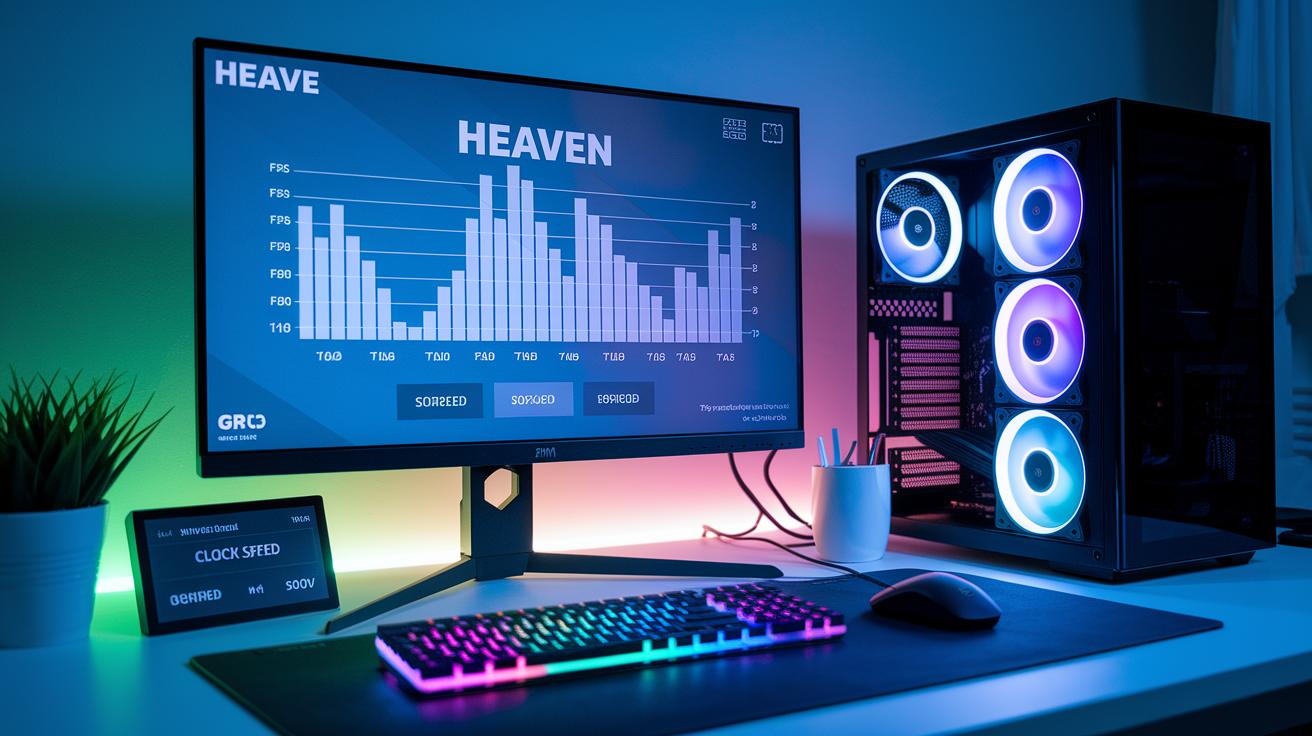
After you adjust the clock speed, run the Unigine Heaven benchmark to compare the original settings with your tweaks. Record the FPS numbers and frame-time stability, aiming for an increase of 7 to 11 FPS on cards like the GTX 1080 Ti and RX 580. For example, "After tweaking the core clock, my FPS jumped from 65 to 73 in Heaven."
Next, stress test your GPU by playing demanding games at the highest graphics settings. This real-world test shows if you encounter any visual glitches, driver crashes, or if the card starts to slow down due to heat. Keep an eye on temperatures using GPU-Z, HWInfo, or the MSI Afterburner overlay to ensure the GPU remains within safe limits, such as maintaining around 78°C during intense gaming.
- Run the Unigine Heaven benchmark using both stock and overclocked settings.
- Stress test with high-demand games set to maximum graphics.
- Monitor temperatures continuously with tools like GPU-Z, HWInfo, or MSI Afterburner.
- Record FPS figures and check for frame-time consistency.
- Watch for any artifacting, crashes, or signs of thermal throttling and adjust your settings as needed.
This method offers a practical workflow that verifies every adjustment without repeating steps.
Safe Nvidia GPU Overclock Practices and Troubleshooting Tips
For beginners, the NVIDIA App’s automatic tuning feature offers a safe way to start overclocking. It adjusts clock speeds on its own while keeping your warranty intact. In our tests, this tool delivered small performance improvements without pushing thermal and power limits too high. For example, one user successfully undervolted an RTX 3070 to 925 mV and applied a +1000 MHz memory overclock, which helped the card run cooler and use power more efficiently.
When you decide to overclock manually, keep a close eye on your GPU’s temperature and fan speeds. Overclocking can be risky if your chip or cooling system gets too hot or draws too much power. Although modern GPUs have built-in safeguards, it’s best to be cautious. If you see crashes, visual glitches, or driver issues during stress tests, go back to your last stable settings. Try reducing your core or memory offsets by 5–10 MHz and test again until you achieve steady performance.
Using tools like MSI Afterburner’s logging feature or checking system event logs can help you pinpoint any unstable settings. Monitoring small fluctuations makes it easier to figure out what might be causing the problem. You might also set a custom fan curve to help keep temperatures below critical levels during heavy use.
Key troubleshooting steps include:
- Revert to your last known stable clock speeds if visual artifacts appear.
- Lower clock offsets in small steps of 5–10 MHz until your system stabilizes.
- Keep a close watch on GPU temperatures with tools like GPU-Z or the MSI Afterburner overlay.
- Check system logs for any driver or hardware alerts.
These practices help reduce the risk of damage while still allowing you to unlock extra performance. Always test each change with a stress test to confirm that your GPU performs reliably under load.
Final Words
In the action, you learned how to overclock Nvidia GPU through a clear, step-by-step guide. We discussed setting your benchmark, tweaking power and clock settings with MSI Afterburner, and stress testing for stability. The article also covered preparing your PC with proper cooling and the latest drivers, plus safe overclocking practices to avoid pitfalls. This guide keeps you in control while boosting graphics card performance. Enjoy the new efficiency and enhanced gaming experience ahead.
FAQ
How to overclock Nvidia GPU Reddit
Overclocking a Nvidia GPU as shared on Reddit involves benchmarking at stock settings, gradually raising core and memory clocks in small increments using software like MSI Afterburner, and stress testing for stability and safe temperatures.
How to overclock Nvidia GPU laptop
Overclocking a Nvidia GPU in a laptop requires careful steps such as using auto-tuning tools or MSI Afterburner where available, ensuring proper cooling due to tighter thermal limits, and testing for performance gains in games.
How to overclock Nvidia GPU for gaming
Overclocking a Nvidia GPU for gaming means boosting core and memory clocks gradually with software tools, running benchmarks to verify gains, and keeping temperatures in check for improved FPS without risking hardware damage.
How to overclock GPU without MSI Afterburner or in BIOS
Overclocking a GPU without MSI Afterburner involves using built-in BIOS options or alternative software to adjust power limits, clock speeds, and voltage manually, while testing for stability and safe thermal performance.
Which GPU overclock software should I use or how to overclock Nvidia GPU with the Nvidia app
Choosing GPU overclock software can include the NVIDIA App for automatic tuning or third-party tools like MSI Afterburner. These apps let you adjust clock speeds, power limits, and fan settings while monitoring overall performance.
How to overclock GPU memory
Overclocking GPU memory involves increasing the memory clock in small increments, then testing for artifacts and instability while balancing temperature control to boost overall graphics performance.
Is overclocking a GPU safe
Overclocking a GPU is generally safe when done with caution. It requires careful temperature monitoring, small incremental adjustments, and stress testing to avoid overheating or component damage while enjoying better performance.
How to increase Nvidia GPU clock speed
Increasing Nvidia GPU clock speed involves gradually raising the core clock settings via overclocking software, benchmarking after each change, and ensuring thermal limits are maintained for smooth, enhanced gaming performance.
How to enable GPU overclocking or can you overclock your GPU yourself
Enabling GPU overclocking yourself means verifying your system’s cooling capacity, using reliable software tools to adjust clock speeds, and running benchmarks to confirm stability, making it a doable DIY task for improved performance.