
Ever wondered if your photos could feel more real? With iPhone Spatial Photos, your images show extra depth that goes beyond a flat view. In iOS 26, your iPhone uses LiDAR sensors and smart depth mapping to capture hidden details and bring everyday snaps to life with a 3D-like vibe. In this article, we break down how these photos work and why models like the iPhone 15 Pro and iPhone 16 create such striking visuals. Stick around to see how simple tweaks can give your photos a fresh and lively feel.
How iPhone Spatial Photos Work: Capture and Display
Spatial Photos are a new imaging feature introduced in iOS 26 that bring your pictures to life with real depth. Think of it this way: when you snap a portrait, your subject might seem to leap off the screen, adding a fun, almost 3D quality to your photos.
This effect comes from a clever mix of LiDAR sensors and custom depth maps. Models like the iPhone 15 Pro and iPhone 16 use LiDAR to pick up tiny differences in depth, creating natural parallax and layered visuals as you move your phone. Imagine a small, dynamic 3D stage where objects shift naturally with your perspective. This technique really shines on high-end devices such as the Vision Pro, where depth is key.
The Photos app keeps all the depth information safe by saving it alongside standard image files like JPEGs or HEICs. So while these photos look just like regular images on your iPhone, iPad, or Mac, the hidden depth data comes into play on devices that support it, letting you see a full, immersive 3D effect.
Device Requirements and Compatibility for Spatial Photos

If you want to create Spatial Photos, your iPhone must run iOS 26. This update works with the iPhone 11, iPhone SE (2nd gen), iPhone 12, and later models. These devices come with advanced sensors and processing power that capture detailed depth maps and create the parallax effect for a real 3D look.
With iOS 26, the Photos app adds spatial capture automatically. That means you can switch on the feature without diving into complicated settings, making it a breeze to add an immersive twist to your pictures.
Older iPhones like the iPhone XS and iPhone XR aren’t supported because they lack the necessary hardware improvements. These models still deliver traditional flat images. On the flip side, the supported models not only bring spatial capture to your everyday photos but also shine when paired with the Vision Pro, where the depth and detail truly stand out.
iphone spatial photos Spark Stunning 3D Brilliance
Apple’s Photos app now sports a cool, hexagon-shaped Spatial Capture button that lets you easily transform your favorite portrait shots into lively 3D scenes. With iOS 26, adding depth details is as simple as a tap, giving your images an extra boost of realism.
Here's how to create your 3D photo:
- Update your device to iOS 26 by navigating to Settings > General > Software Update.
- Open the Photos app and select a shot with depth data (like one taken in Portrait mode).
- Tap the hexagon Spatial Capture icon at the top right.
- Wait until you see the “Spatial Scene Created” message.
Once the process is done, take a close look at your new 3D scene. Open it in Photos and slide your finger across the screen to catch the parallax effect, a gentle shift in perspective that shows off the hidden depth layers. If the motion feels smooth and natural, your image is all set to share. On devices like the iPhone 15 Pro or iPhone 16, this effect not only gives photos a fresh, 3D feel but also comes alive on Vision Pro. Finally, check the image details to ensure the depth info is there, and simply tap the save icon to store your enhanced photo in your library.
Viewing Spatial Photos on iPhone, iPad, and Mac
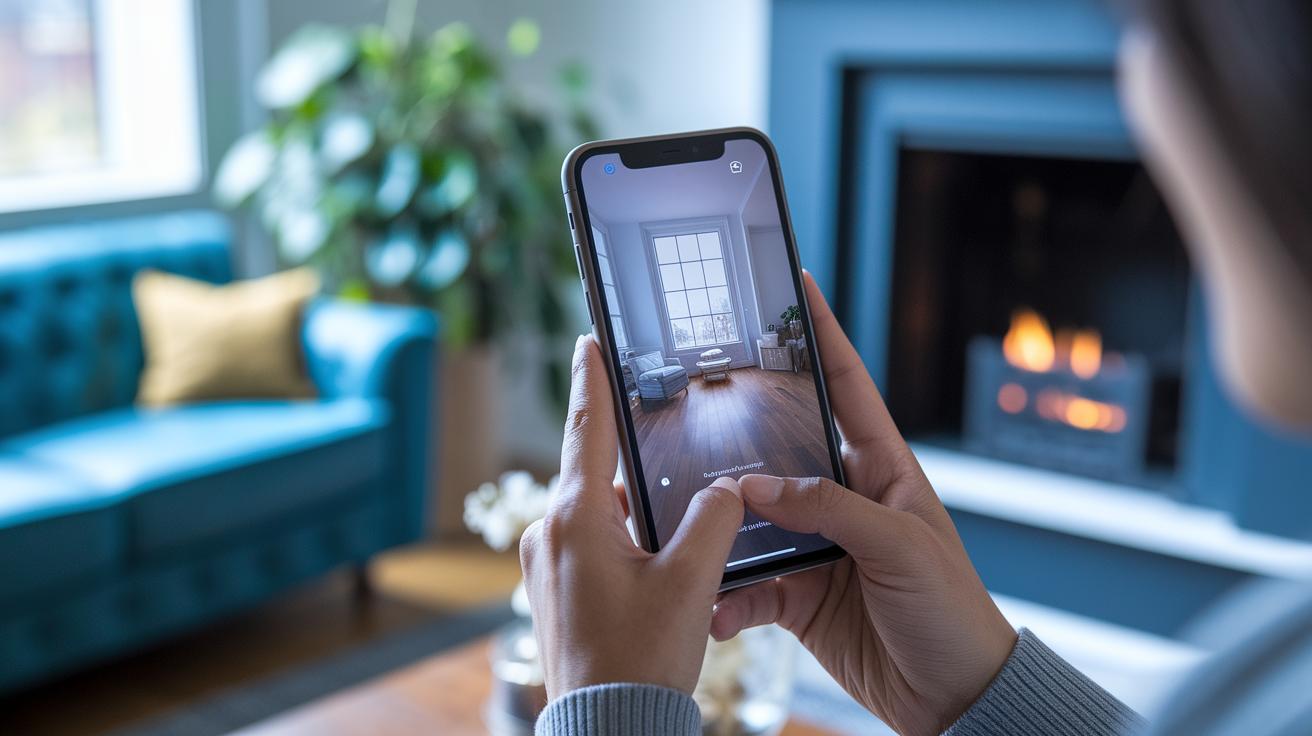
Spatial Photos show up like usual pictures in the Photos app, but they carry extra depth information that only comes to life when you interact with them.
On your iPhone, just tap and hold a Spatial Photo to see a gentle parallax effect that brings out its layers. On iPad and Mac, the larger screens let you notice these subtle depth cues without changing the photo's familiar look.
Since everything syncs automatically through iCloud, you'll enjoy the same enhanced viewing experience whether you're using an iPhone, iPad, or Mac.
Editing and Sharing iPhone Spatial Photos
After you create your Spatial Scene, tap the Share button in Photos. This brings up export options so you can send your 3D snapshot via messaging apps, post it on social media, or save it to a new album. It’s like opening a window and saying, "Hey, check out this cool 3D capture!" Sharing your work becomes quick and fun.
To set your Spatial Photo as your Lock Screen wallpaper, tap Share and choose Use as Wallpaper. You can turn the 3D effect on or off and adjust the image framing. It’s much like repositioning a favorite picture on your wall to suit your style, a simple way to give your phone a personal, lively look.
If you want a changing display, you can set your Lock Screen to shuffle through several Spatial Scenes. Just swipe down, hold, and open the customization options to pick a series of your 3D captures. This creates a dynamic gallery that refreshes every time you unlock your device, offering an engaging and personal experience all day long.
Comparing Spatial Photos vs Standard iPhone Images

Spatial Photos boost your viewing experience by including extra depth info that creates a cool parallax effect. They use features like LiDAR to make details stand out, especially on displays such as Vision Pro. In contrast, standard photos only capture the usual flat image data, so they look more traditional.
| Feature | Spatial Photos | Standard Photos |
|---|---|---|
| Depth Data | Yes, embedded | No |
| Viewing Experience | Parallax/3D on Vision Pro | Flat |
| Device Support | iOS 26+, Vision Pro | All devices |
If your device can handle it, spatial photos are a fun way to add a modern twist to your shots. They give you a lively, 3D-like look that adds depth and makes everyday images come alive. But if you use older hardware or like a simpler, classic feel, standard photos are still a reliable choice.
Frequently Asked Questions About iPhone Spatial Photos
Q1: Why isn’t Spatial Capture available on my iPhone?
If your iPhone is older or hasn’t updated to iOS 26, you might not see the Spatial Capture button. For example, models like the iPhone XS or XR lack the hardware and software support needed for this feature.
Q2: How do Spatial Photos look on iPad and Mac?
On iPad and Mac, these photos appear just like regular images. The extra depth information stays hidden unless you view them on a device like Vision Pro that can use that extra layer. Think of it as a secret ingredient that only makes a difference in the right setting.
Q3: How can I restore depth data if the export fails?
If the depth layers fail to export, first check that you’re running iOS 26. Then restart the Photos app and try exporting again. In our tests, a simple restart often brings back the depth data so you can enjoy the 3D effect.
Q4: What are some tips for troubleshooting depth-map glitches?
When depth maps act up, check if there are any software updates or issues with the Photos app. Try capturing the shot in a well-lit environment and ensure your device has enough power to process the extra depth data. These steps can help you get back to enjoying your 3D scenes.
Final Words
In the action, we broke down how iPhone Spatial Photos work by explaining the tech behind capturing depth data and comparing it with standard images. We reviewed setting up the feature through iOS 26, checking device compatibility, and sharing your immersive shots.
We also walked through detailed steps to create your own spatial scenes while weighing the pros and cons between immersive capture and traditional photography. Keep experimenting with iphone spatial photos to bring a new level of depth and creativity to your everyday shots.
FAQ
What does a spatial photo do on an iPhone?
A spatial photo on an iPhone uses depth data to create a parallax effect, giving images a 3D look. On non‑Vision Pro devices, the effect is subtle while the extra data remains embedded.
What is the difference between spatial photos and normal photos?
Spatial photos store depth metadata that creates a parallax, 3D-like effect when viewed on compatible devices, whereas normal photos capture standard flat images without depth details.
How can I take spatial photos with my iPhone?
To capture a spatial photo, update to iOS 26, select a portrait image with depth data, and tap the hexagonal Spatial Capture icon to generate a Spatial Scene with embedded depth information.
How do I view spatial photos on my iPhone without a Vision Pro?
On your iPhone, spatial photos appear as standard images with a subtle parallax effect. Full 3D rendering is reserved for viewing on the Vision Pro, while other devices show the built-in depth data.
Can I turn off spatial photos on my iPhone?
Yes, you can adjust settings to disable the 3D depth effect, which retains your images as standard photos without the spatial enhancements, depending on your device and iOS version.
How do spatial photos work on an iPhone 15?
The iPhone 15 captures enhanced depth data using its advanced sensors, allowing it to create spatial photos that embed a detailed depth map for a more immersive photo experience.
Why might my iPhone spatial photos not be working?
If spatial photos are not working, your device might not support iOS 26 or the photo may lack valid depth data. Check your iOS version and try using a portrait mode image.
What does the term “spatial screen” mean in relation to photos?
The term “spatial screen” refers to the display effect where a photo uses embedded depth information to create a three-dimensional look, enhancing the image with a subtle, lifelike parallax.
How does Apple Vision Pro enhance spatial photos?
Apple Vision Pro unlocks the full immersive potential of spatial photos by rendering their depth data in true 3D, letting you experience a more lifelike and detailed visual presentation.