
Ever wonder what really drives your computer's speed? Every computer has a few key parts working together like clock gears. The processor serves as the brain, while the cooling system makes sure everything runs smoothly. In this post, we break down the main hardware components that keep your system ticking. This guide helps you decide on smart upgrades or build a new computer with confidence.
Computer Components Overview: Essential Hardware Parts and Their Roles
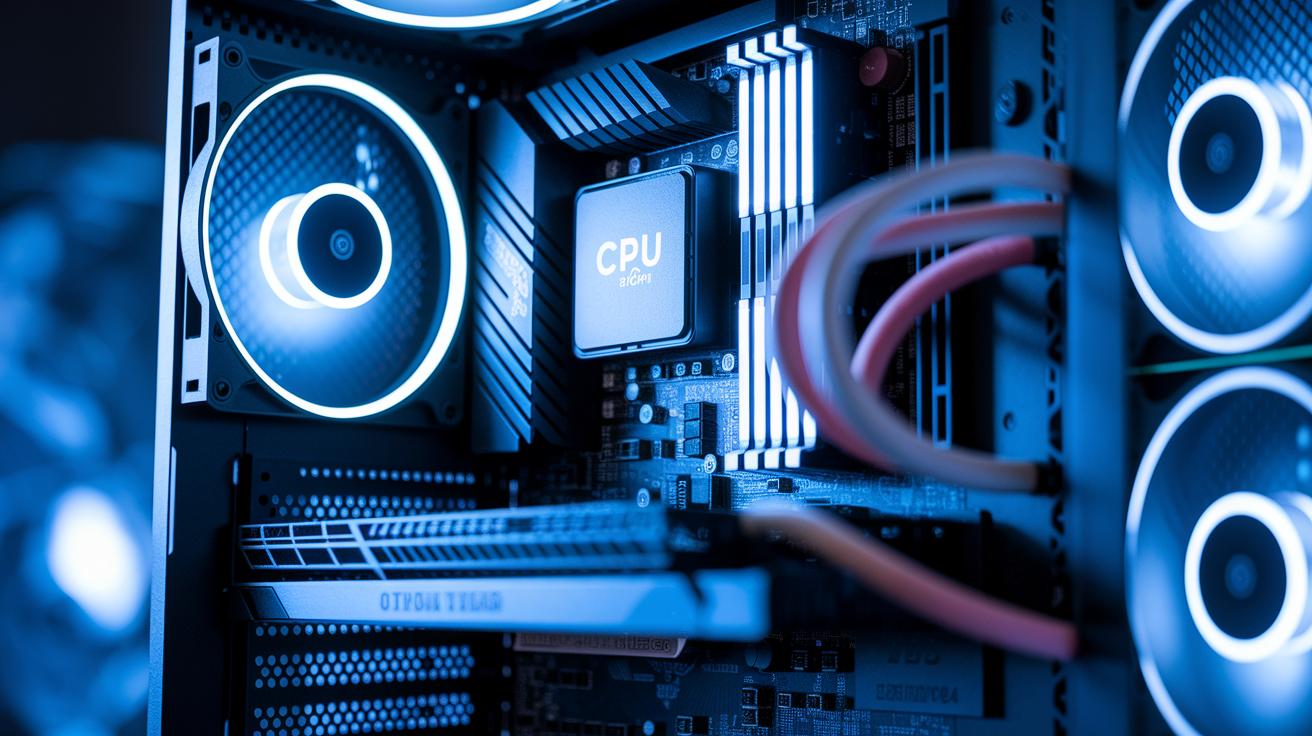
Computer hardware includes all the physical parts of your computer. It covers essential items like the processor, memory, storage drives, display, and power supply. These pieces differ from software, which consists of the programs and operating systems you use. For a quick look at the difference, check out this guide: what is the computer hardware.
Today’s computers depend on several key components that work together to keep everything running smoothly. They have evolved over time to handle everyday tasks, multiple programs at once, and even more demanding apps. Whether you're building a new system or upgrading an old one, understanding these parts helps you make smarter choices.
- CPU
- Motherboard
- RAM
- Storage drive
- GPU
- PSU
- Cooling system
Every component has a distinct role and they all work in unison. The CPU (central processing unit) takes care of all digital computations. The motherboard links the CPU with memory and other expansion options. RAM gives temporary space for programs while running, unlike storage drives (HDDs or SSDs) that hold data even when the computer is off. The GPU (graphics processing unit) is in charge of rendering images and video, which is key for games and visual applications. The PSU (power supply unit) makes sure each part receives safe and stable power. Lastly, the cooling system keeps temperatures down to prevent overheating. Together, these elements create a balanced system that smoothly handles everyday tasks and heavier workloads.
Central Processing Unit (CPU) Component Details
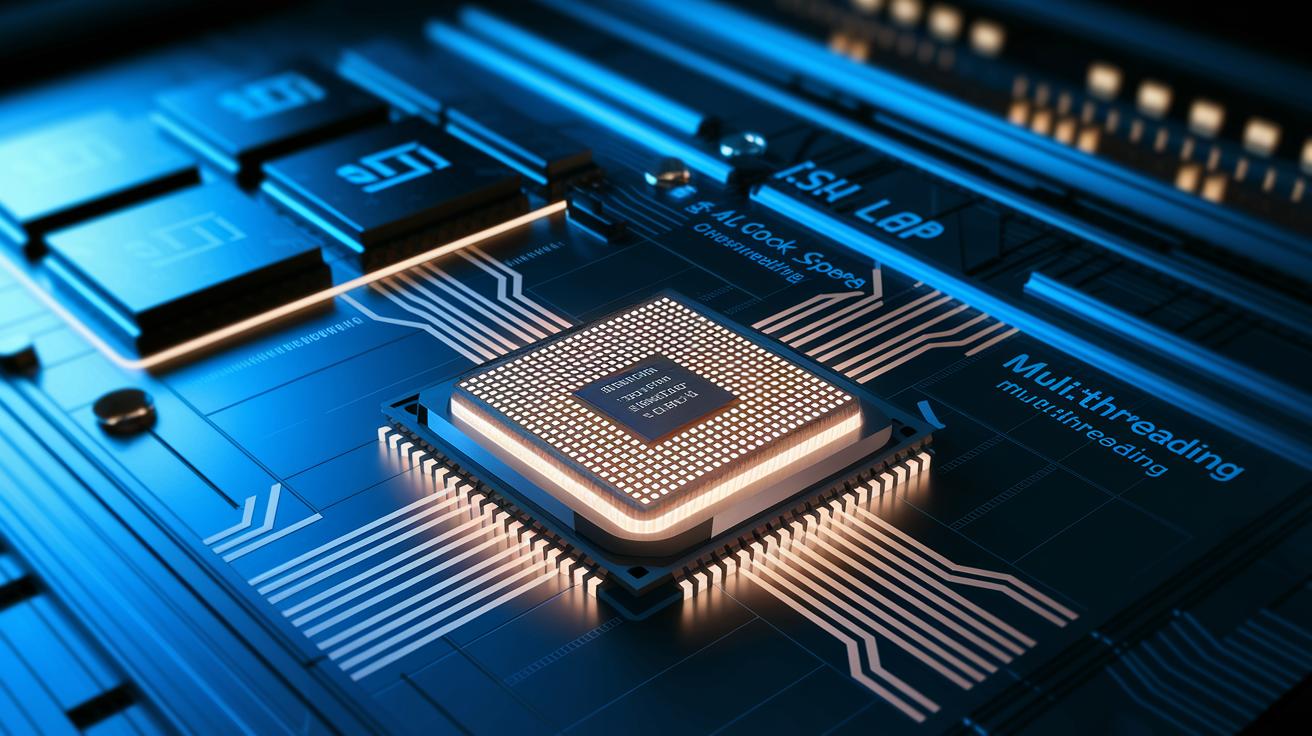
The CPU, also known as the microprocessor, is like your computer's brain. It takes in instructions and turns them into actions, handling everything from simple tasks to complex applications. Your system's speed and overall feel often come down to how powerful this key component is.
- Instruction-set architecture (ISA)
- Clock speed (GHz)
- Core count
- Multithreading capability
- Cache size
When choosing a CPU, think about what you'll use your computer for and balance performance with cost. For everyday tasks, a processor with moderate speeds, a few cores, and multithreading might be just right. But if you game or create content regularly, you might need one with more cores, lightning-fast speeds, and a larger cache for smoother performance. Both Intel and AMD offer a variety of processors with different specs, so look at the ISA for clues on software compatibility and extra features. In our tests, systems where the CPU was well matched to the software demands felt much more responsive. Picking the right processor can really boost your overall computing experience.
Motherboard Fundamentals as a Hardware Component
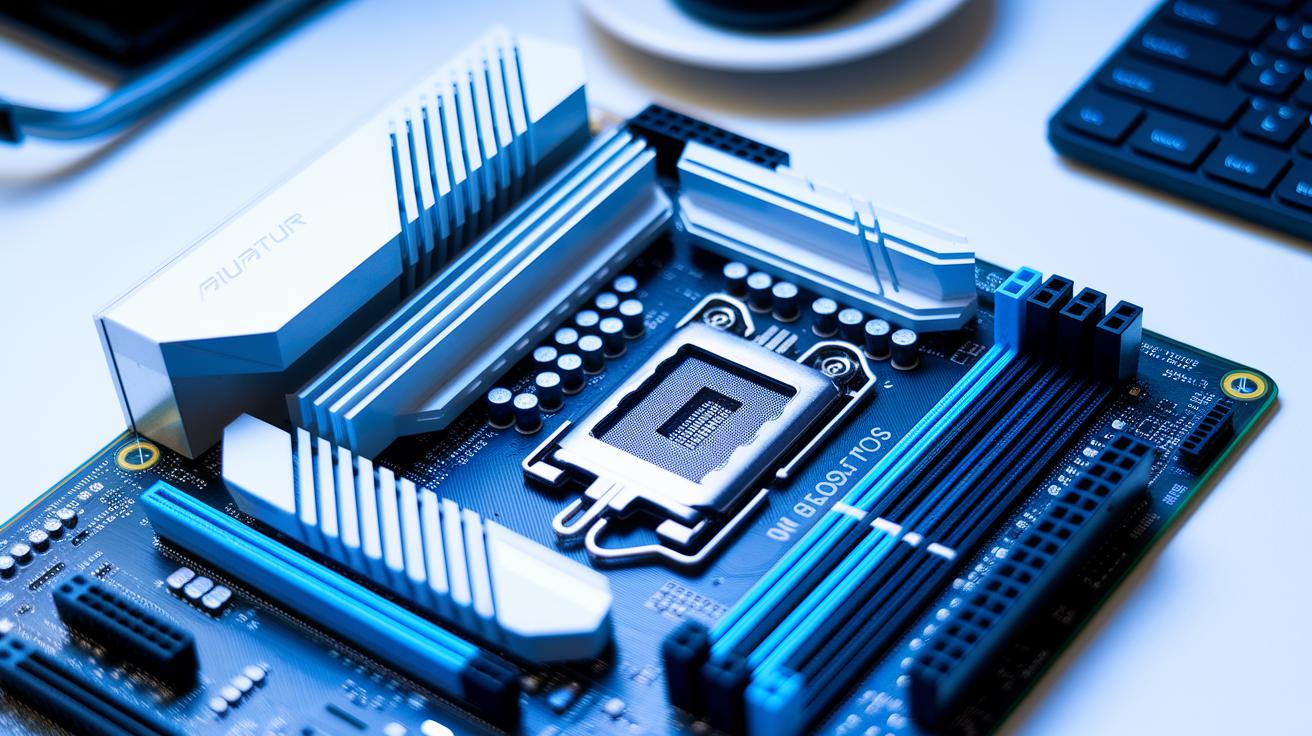
The motherboard is the heart of your computer. It holds the CPU in a special socket (this is where the brain of your computer sits) and houses memory in DIMM slots. A built-in chipset connects the CPU with storage, expansion cards, and more so that all parts work together smoothly. The CPU socket is carefully placed to help with performance and cooling. You also get PCIe slots for adding devices like graphics cards and built-in I/O ports (such as USB, HDMI, Ethernet, and audio jacks) for everyday connections.
Built to be flexible and ready for upgrades, the motherboard lets you add more memory or expansion cards as your needs grow. The chipset acts like a traffic controller for data between the CPU and other devices. Standardized ports make it easy to hook up additional equipment, which can help keep your build neat and cables organized. Knowing what each part does makes it easier to build or upgrade your PC for steady performance and easy improvements.
| Feature | Function |
|---|---|
| CPU socket | Houses the processor |
| DIMM slot | Holds memory modules |
| PCIe slot | Accommodates expansion cards |
| Chipset | Manages data traffic among components |
| I/O ports | Connect peripherals and external devices |
Memory Module Specifications in Computer Hardware Components
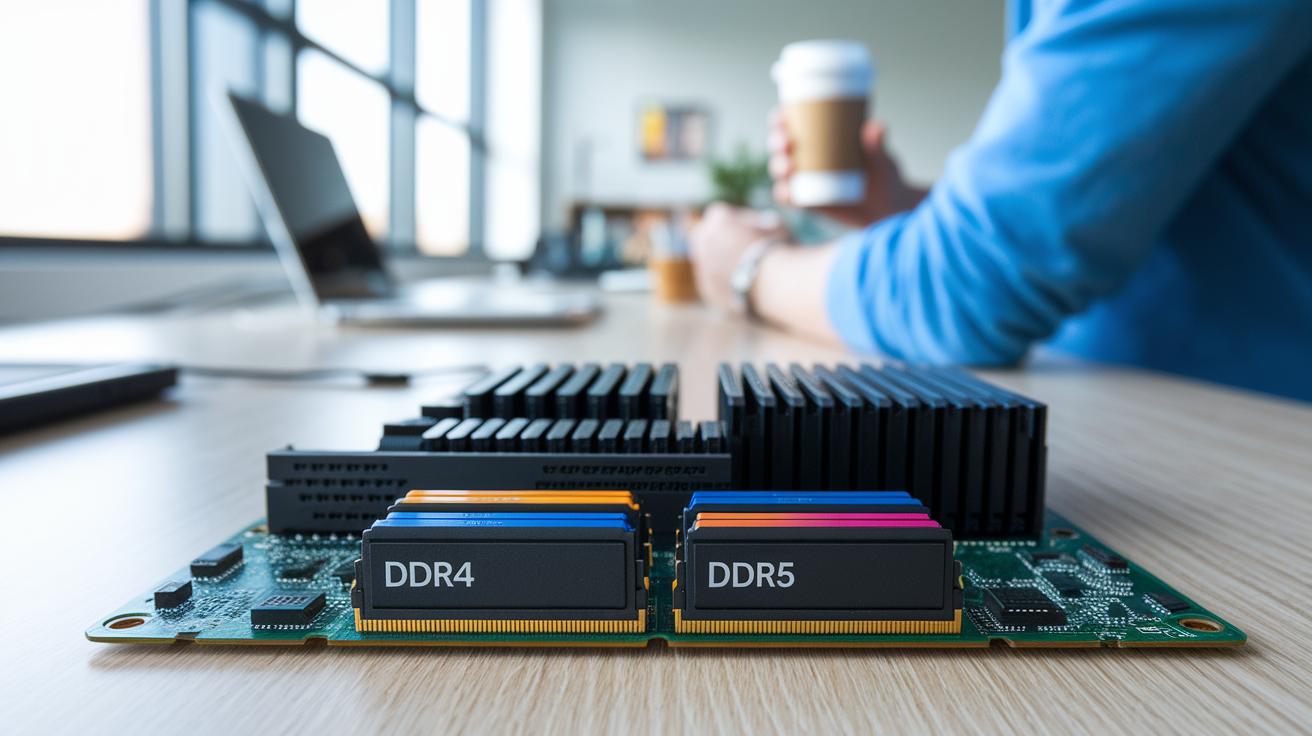
RAM is the short-term memory your computer uses to keep things running smoothly. It holds the data and instructions that your system needs right now, so the CPU can work quickly. Without enough RAM, even basic tasks can slow down the whole computer.
Memory modules come in different DDR types, like DDR3, DDR4, and DDR5. They are rated by their speed in MHz, which shows how fast they can move data. Faster speeds make your computer more responsive, especially when you have many apps open at once or are using demanding programs.
When choosing RAM, capacity is key. For most everyday tasks, 8 GB to 16 GB is ideal, although modules are available from 4 GB to 32 GB. It’s important to check your motherboard’s specifications to be sure the RAM’s type and speed match. This ensures your computer runs smoothly without any hiccups.
Storage Drive Options for Computer Hardware Components
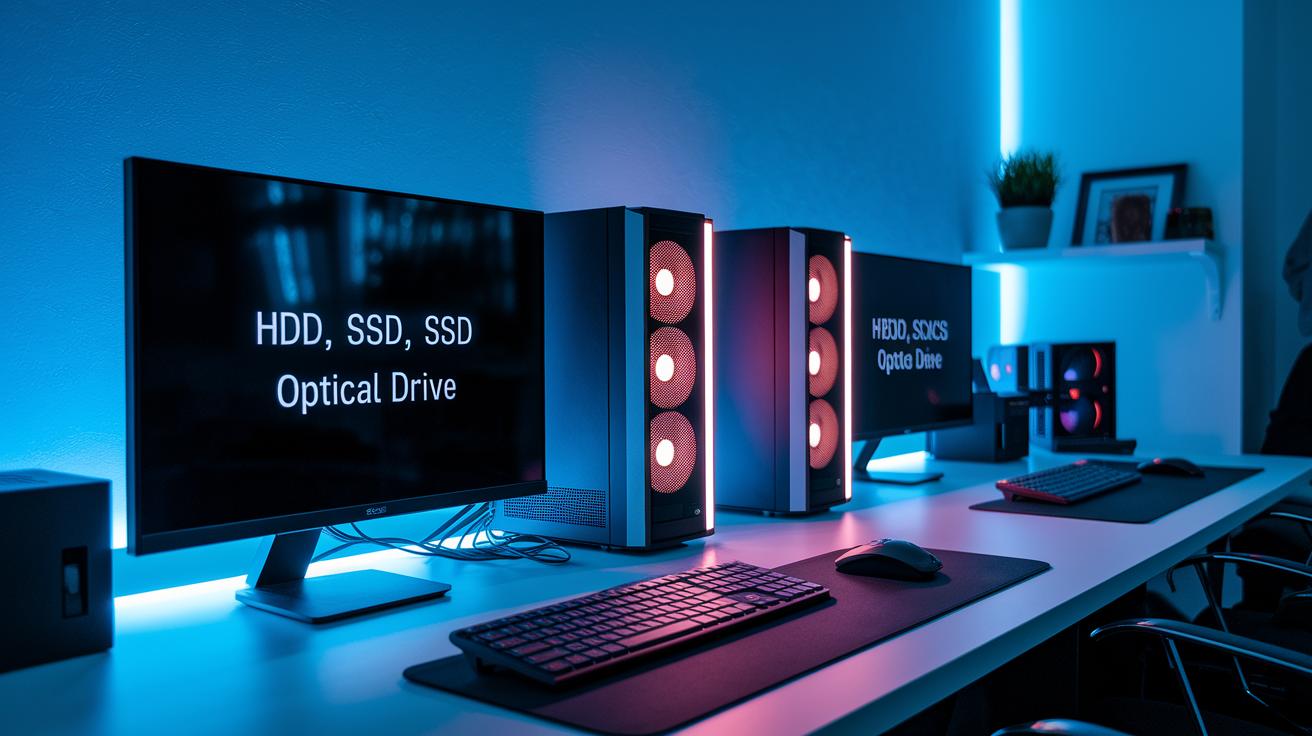
When setting up or upgrading a computer, you can choose from several storage options. The main types include HDDs (hard disk drives) that are budget-friendly, SSDs (solid state drives) that use flash memory for faster file access, eMMC modules commonly found in compact devices, and optical drives for playing or burning DVDs and CDs. Each type is suited for different needs based on speed, capacity, and cost.
In our tests, SSDs clearly perform faster than traditional HDDs, which rely on spinning disks and can sometimes slow down your system. While eMMC modules work well in smaller devices like tablets and lightweight laptops, they rarely match the speed of SSDs. Optical drives continue to serve a niche for users who still need to manage physical media, whereas HDDs remain a popular choice for those looking for a low-cost solution despite slower read/write speeds.
Data transfer speed is crucial for overall system responsiveness. For instance, SATA SSDs typically hit around 6 Gbps, and NVMe SSDs can surpass 3 GB/s. The endurance of flash memory also matters, as it affects how long SSDs keep up their top performance, while HDDs can wear out with extended use. Balancing speed, reliability, and price will help ensure your computer stays fast and dependable even as new software demands emerge.
Graphics Card Performance as a Computer Hardware Component
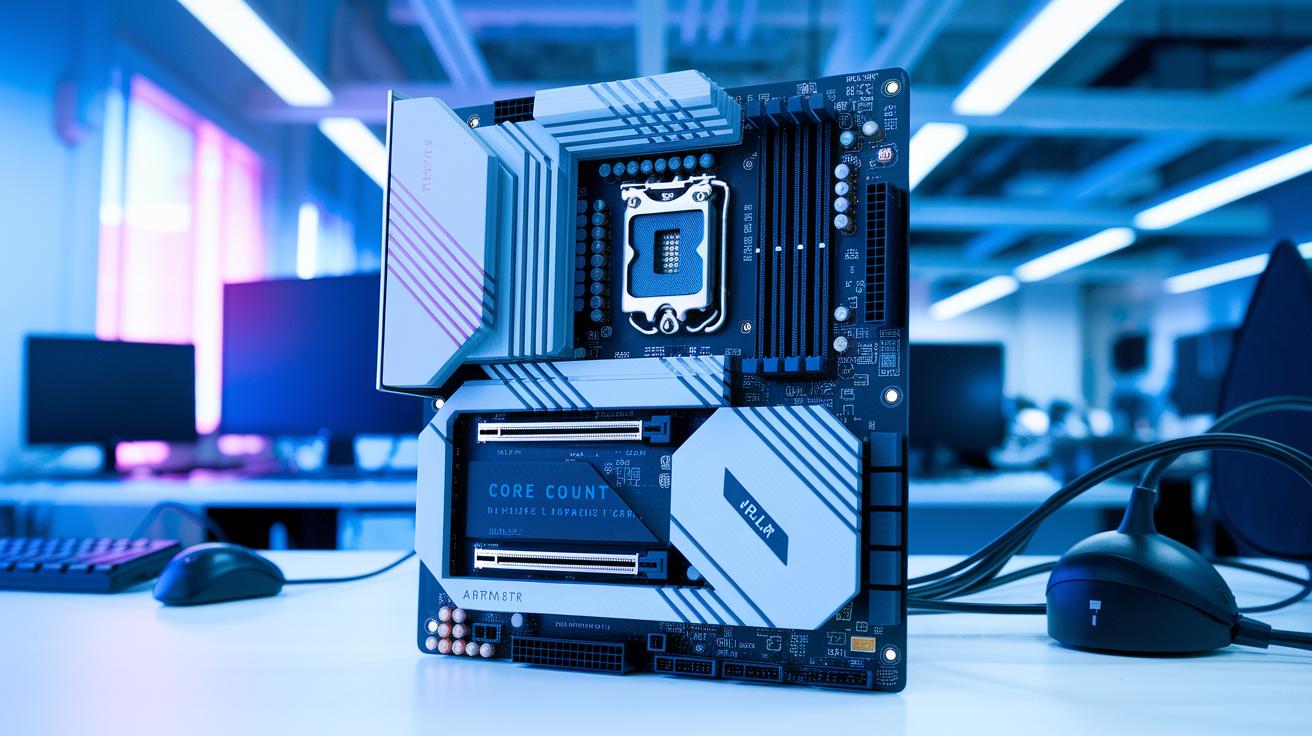
GPUs help bring images to your screen. Many computers have built-in graphics chips in the CPU or on the motherboard that handle everyday visuals. But if you’re running games or creative programs, a separate graphics card that plugs into a PCIe slot delivers extra power.
The size of the VRAM matters because more memory means smoother handling of large textures and high-resolution images. Likewise, a higher core count boosts the ability to process tasks at once, which is key for real-time rendering and intensive media work.
When picking a GPU, think about what you do most. For daily tasks, integrated graphics might do just fine. But if you game or do creative projects, a dedicated card with more cores and VRAM is a better bet. Checking benchmark tests can also help you find a solution that fits your budget and performance needs.
Power Supply Unit: Essential Computer Hardware Component
A power supply unit is a key part of your computer. It converts the AC power from your wall outlet into the DC power that your computer parts need to run smoothly. This conversion gives steady, regulated energy to components like the CPU, motherboard, and storage devices, which helps keep your system stable.
When you’re picking a power supply, check its wattage and efficiency ratings. Matching the unit’s wattage to your system’s power needs (with a little extra for future upgrades) helps avoid power shortages. Efficiency ratings, like those verified by 80 Plus standards, mean the PSU wastes less energy and delivers safer voltage for reliable performance.
Modern power supplies come in various sizes and offer different cabling options. Modular and semi-modular designs let you manage cables better, which improves airflow inside the case. Whether you’re building a compact system or a high-performance rig, choosing a PSU with quality connectors and a design that fits your case is essential.
Cooling System Methods for Computer Hardware Components
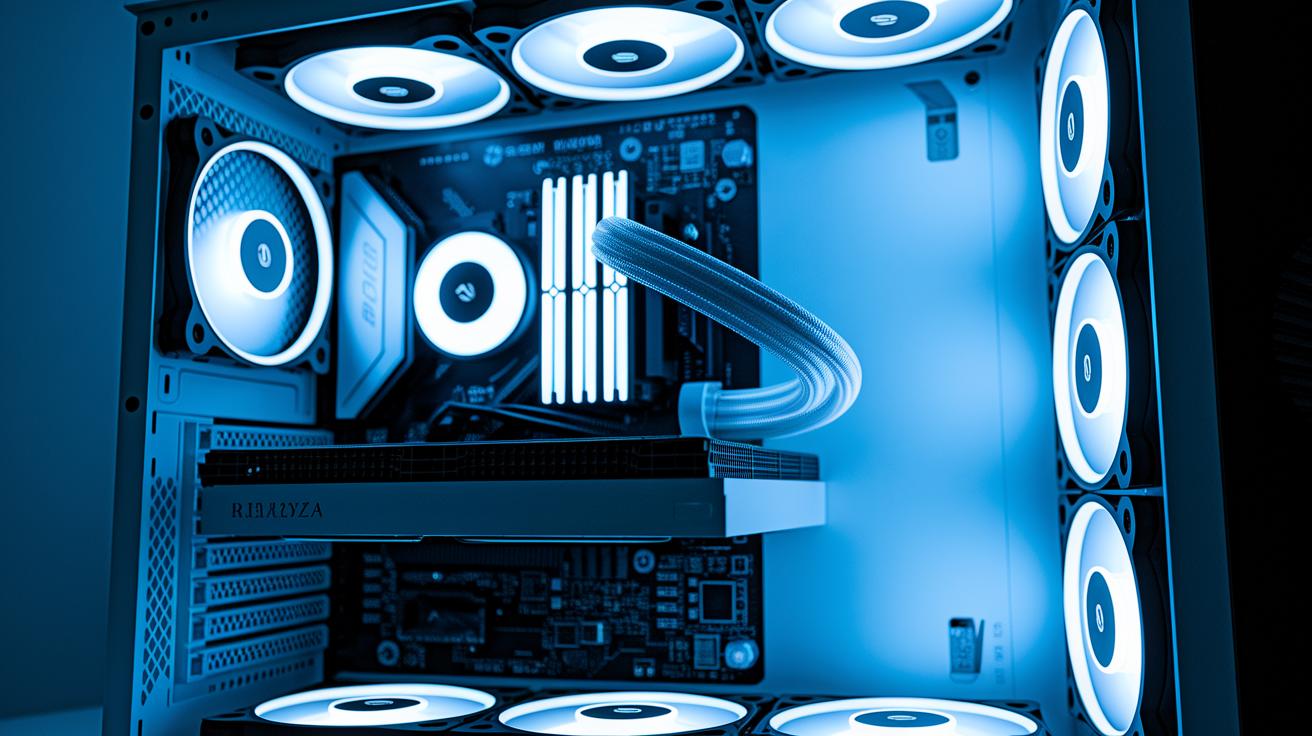
TL;DR: Keeping your computer cool is essential to avoid slowdowns and hardware damage. Air-cooling uses fans and heatsinks for quiet, everyday use, while liquid-cooling with circulating coolant is great for heavy loads if maintained properly.
Computers need proper cooling to perform well. When components like CPUs and GPUs heat up too much, the system can slow down or even suffer damage. By keeping temperatures in check, you avoid performance drops and help the important parts last longer.
Air-cooling works with fans and heatsinks that pull heat away from hot areas. The design of the heatsink and the fan’s size and speed play a big role in creating good airflow. When these are chosen right, your system stays cool and works quietly during regular tasks.
Liquid-cooling is another option that uses a liquid coolant running through blocks attached to key components. This setup can move heat away more efficiently, especially when the computer is under heavy use. Just remember to stay on top of maintenance, check coolant levels and clean the radiators regularly to prevent leaks and keep everything running smoothly.
External Peripherals Guide in Computer Hardware Components
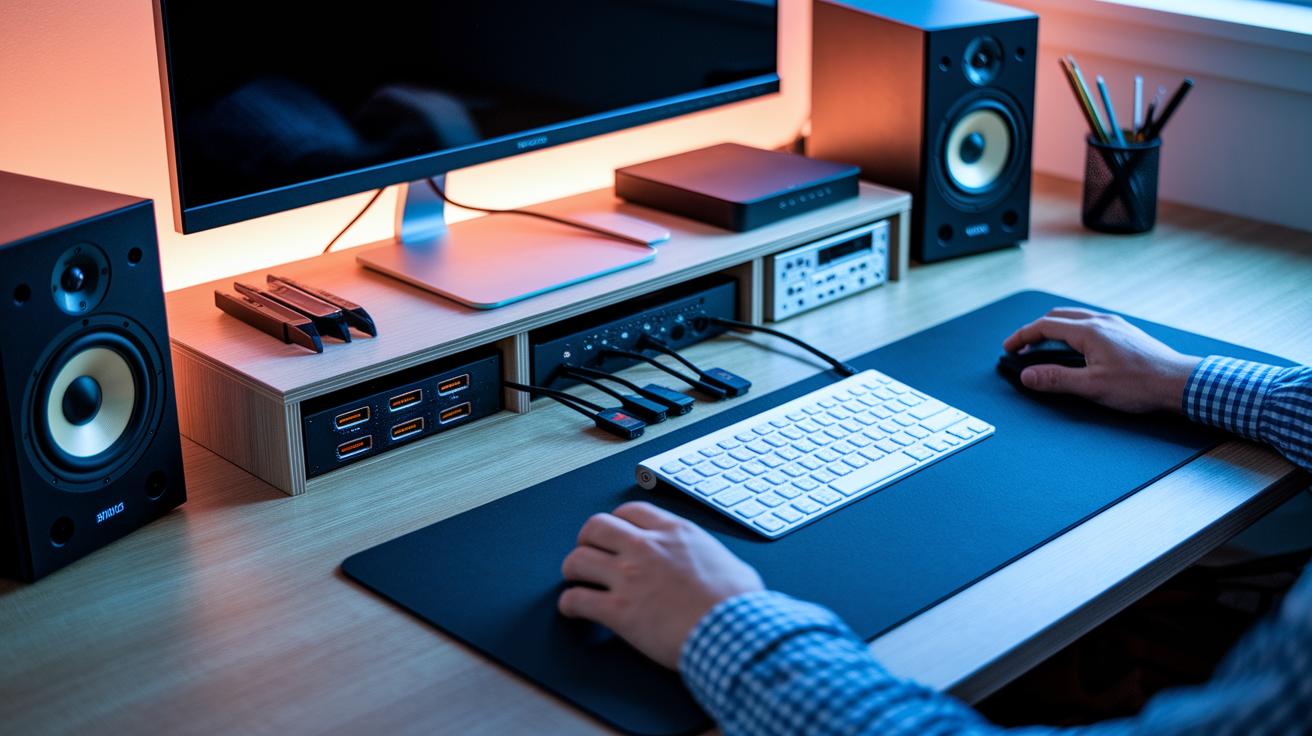
Key devices like keyboards, mice, monitors, and audio gear are essential for using your computer. Whether you're writing a paper, browsing the internet, or watching a video, these devices let you interact easily. There are plenty of options available, from keyboards that feel comfortable to monitors that show sharp images.
Your computer offers several ports to hook up these devices. Most gadgets connect with USB-A or USB-C ports, which handle both data and charging needs. Monitors usually plug into HDMI or DisplayPort to get a clear video signal. For a solid internet connection, an RJ45 port is used for wired networking.
A tidy setup not only looks good but helps your computer stay cool. Grouping cables and using ties or clips reduces clutter and improves airflow inside your computer case. This simple step makes it easier to keep things organized, avoid accidental unplugging, and protect your cables from damage.
System Assembly and Troubleshooting Your Computer Hardware Components
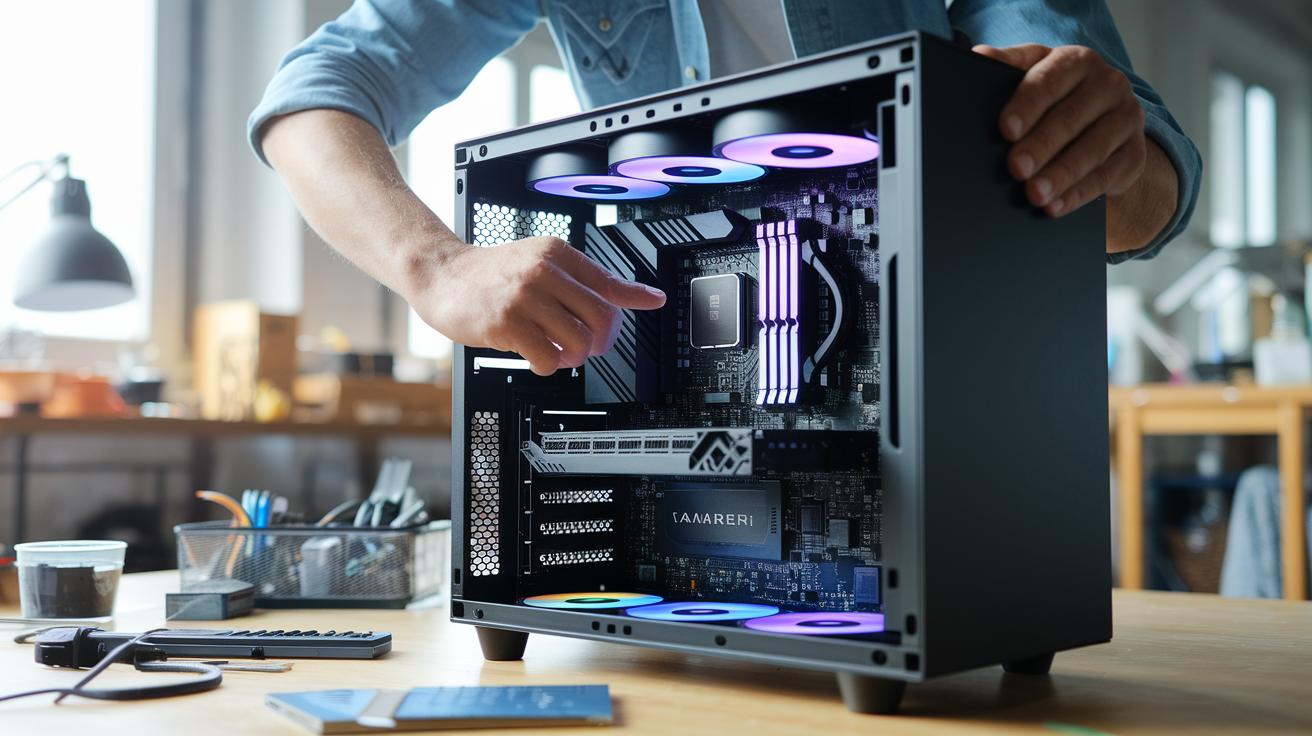
Begin by following a clear build order. Install the CPU first, then add the RAM and storage, and finally position the GPU and power supply. Once everything is in place, hook up the cables one by one, making sure they are secure and in the right spots. Think of it like piecing together a puzzle, each part has its place for the system to run smoothly.
Before you start assembling, double-check that all parts work together. Look at the CPU socket on the motherboard, confirm the right type and speed of RAM, and ensure your case can fit the GPU. Use your system specs and datasheets as a simple checklist. Even a tiny mismatch can lead to problems, much like a door with a loose hinge.
If your computer does not boot, start by checking for POST (power-on self-test) errors or unusual power issues. Often, the problem is that a component is not set in correctly or a cable is loose. Removing and re-seating the RAM or checking each connector carefully can fix many common issues without the need for advanced tests.
Plan ahead for any future upgrades with a build checklist. Make sure to evaluate available power headroom, verify socket compatibility, and check the form factor of your case. This careful planning helps avoid conflicts and keeps your computer responsive and efficient as you upgrade its components.
Final Words
In the action, we broke down each computer hardware components segment, from the CPU and motherboard to storage options, cooling systems, and peripherals. We also walked through assembly steps and basic troubleshooting tips to give you a clear picture of how these parts work together.
This overview helps you make smart choices when building or upgrading your system. Enjoy the process and feel confident that your next build is backed by hands-on insights and practical advice.
FAQ
Q: What are the basic computer hardware components and their functions?
A: The basic computer hardware components include items like the CPU, motherboard, RAM, storage drives, GPU, PSU, and cooling systems. They work together to process data, store information, and output results.
Q: What are the primary hardware components and how do lists differ (7 versus 10 components)?
A: A common list highlights seven major parts—CPU, motherboard, RAM, storage drive, GPU, PSU, and cooling system—while an extended list adds peripherals like keyboards, mice, and monitors to round out a 10-component setup.
Q: What are the four main types of computer hardware?
A: The four main types generally refer to system components (like the CPU and motherboard), memory devices, input devices (such as keyboards), and output devices (like monitors), each fulfilling specialized tasks in computing.
Q: What does the reference to “30 parts of a computer” mean?
A: The phrase “30 parts” points to a more detailed breakdown of a computer, including numerous smaller components such as connectors, chips, and circuit boards beyond the main hardware elements.
Q: What are the uses of computer hardware?
A: Computer hardware is used to execute calculations, store and process data, render images, and connect with peripherals. Each component plays a role in ensuring the system runs efficient and accurate operations.
Q: How does computer hardware differ from software?
A: Computer hardware consists of all the physical parts like the processor and memory, whereas software includes the programs and operating systems that instruct the hardware on performing tasks.
Q: What is computer memory?
A: Computer memory typically refers to components such as RAM that temporarily hold data and instructions for the CPU, allowing for quick access during processing and smooth system performance.
Q: What is the role of the central processing unit (CPU) in a computer?
A: The CPU serves as the main processing chip that carries out calculations and executes instructions, making it the core component responsible for overall system performance and responsiveness.
Q: How can I access computer hardware notes or PDF resources?
A: You can access detailed computer hardware notes or PDFs through educational websites and online repositories that compile hardware specifications, functions, and practical tips for understanding and troubleshooting components.
Q: What does computer hardware management involve?
A: Computer hardware management includes tasks such as installation, maintenance, troubleshooting, and upgrades. It ensures all parts work well together, maximizes performance, and keeps the system running smoothly.