
Ever wonder if your smartphone could give you full control over every shot? Samsung phones let you do more than just snap a picture and share it. They come with several camera modes that let you tweak settings like frame rates and manual controls. In this post, we show you three setups that can turn everyday photos into creative works. These features let you capture moments with a professional touch, all from a device that fits in your pocket.
Samsung Camera Options Overview: Models, Specifications, and Performance
Samsung Galaxy phones come with a wide range of camera features that turn your phone into a powerful photography tool. You can start with a default setting of 30 FPS, but if you need smoother motion when filming, switching to 24 FPS or even higher is a breeze. Modes like timelapse and hyperlapse let you turn long periods, like hours of shifting sunlight, into amazing short videos. Long-exposure mode captures light trails and moving subjects in one shot, giving you an effect similar to a timelapse without needing multiple images.
For those who want full manual control, Pro Mode is available under the More > Pro menu. This mode lets you adjust the ISO for better brightness in low light (though higher ISO might add some grain), choose shutter speeds from very short for a crisp freeze to long exposures for creative blur, and tweak the white balance so colors look natural even in mixed lighting. You can also use manual focus with focus peaking, which highlights the details and ensures your subject stays sharp, while EV compensation helps avoid sudden changes in brightness. Quick lens-switch options allow you to easily jump from wide to ultrawide or telephoto views.
Additional handy tools include HDR, which blends different exposures to balance bright and dark areas, grid lines and levelers to help frame your shot, and adjustable shutter-button placement. Shooting in RAW lets you keep all the sensor data for advanced editing later. The auto scene optimizer adjusts settings on the fly for things like food or sunsets, and extra apps like Good Lock Camera Assistant and Galaxy Enhance-X offer simple slider controls, motion-blur fixes, and smart color enhancements. All of these features work together so you get more out of your camera than you might have expected.
In-Depth Look at Samsung Camera Options: Pro Mode Features
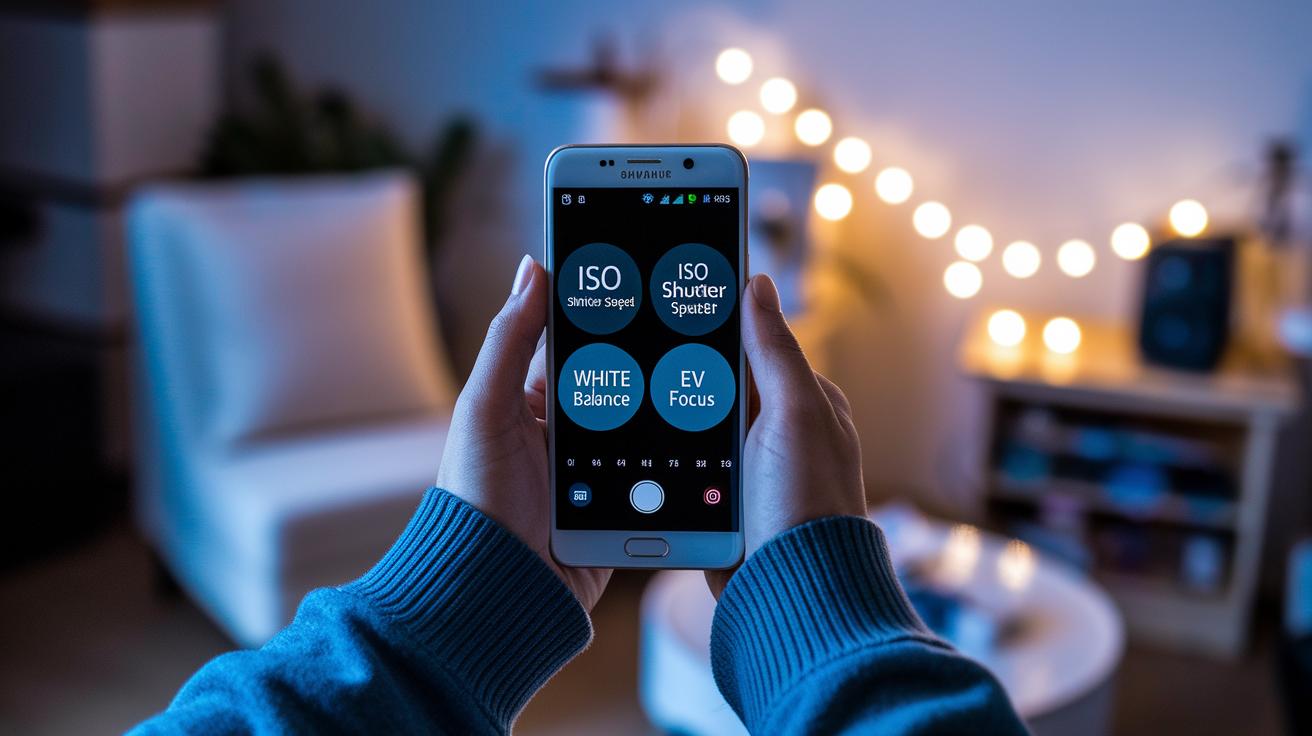
Samsung's Pro Mode offers complete manual control through the easy-to-access More > Pro menu. You can adjust settings like ISO, shutter speed, white balance, EV compensation, and manual focus with focus peaking all in one place. For example, when shooting in low light, try lowering your shutter speed while keeping the ISO around 400; setting the shutter to 2 seconds blends ambient light into a soft, dreamy backdrop.
Practical tips like these can take your photos to the next level. In bright or mixed lighting, switching white balance presets or fine-tuning Kelvin settings can turn everyday scenes into sharp, professional shots. Unlike auto mode, where the camera sets everything for you, Pro Mode lets you plan your scene by pre-setting exposure levels, so you avoid over- or underexposed images. For instance, if you're capturing dynamic sports action, using fast shutter speeds freezes the motion, and toggling between wide and telephoto lenses lets you play with framing and perspective on the go.
Essential Samsung Camera Options: Shooting Modes and Presets
Samsung's built-in camera features a variety of shooting modes that help you capture the perfect shot in any situation. The Scene Optimizer identifies subjects like food, landscapes, and portraits, automatically adjusting color, contrast, and exposure on the fly. For example, when you take a picture of a busy street meal, the camera makes sure every detail looks just right without extra work on your part.
Single-shot HDR blends multiple exposures to balance light and dark areas, which is great for capturing sunsets over city skylines. Panorama mode goes a step further by stitching together several images into a smooth, wide-angle shot, ideal for showcasing expansive travel vistas.
Portrait mode creates a natural background blur that highlights your subject, giving your photos a professional look. In low-light conditions, Night mode uses multiple frames to boost clarity and detail, ensuring that your night shots remain bright and vibrant. Live Focus even allows you to adjust the bokeh effect after you've snapped the photo, providing extra creative freedom.
For those dramatic, slow-motion moments, Super Slow-Mo records at up to 960 frames per second, capturing fine details that standard speeds might miss. Plus, with options for different aspect ratios like 1:1, 4:3, and 16:9 along with grid overlays, you can easily frame and compose each shot to suit your style.
Samsung Camera Options Apps: Good Lock Camera Assistant and Galaxy Enhance-X

Good Lock Camera Assistant gives you simple slider controls for ISO, EV, white balance, and focus. This makes it easy to adjust settings on the fly. For example, in low-light conditions, you can tweak the white balance to capture warm, natural light without any fuss.
Galaxy Enhance-X uses smart AI features to boost your photos. Its Face tool smooths skin tones and brings out details, similar to adjusting a contrast slider in your favorite photo-editing app. The app also corrects motion blur and fixes optical issues so you get clearer action shots. Plus, it offers a Colorize feature that turns old greyscale images into vibrant photos. There’s also a cool 24-hour time-lapse mode that lets you record a full day’s light changes in one smooth clip.
Specialized Samsung Camera Options for Night, Time-lapse, and Slow-Mo Photography
If you're a seasoned user looking for more than just basic low-light or motion shots, these advanced techniques might be just what you need. When night mode still produces noisy images in very low light, try switching to Pro Mode and lowering the ISO manually. For example, in tight urban scenes, reducing your ISO by two stops can significantly cut down noise and yield a cleaner picture even when light is scarce.
For timelapse and hyperlapse photography, choose a capture interval that matches your scene. A 5-second gap, for instance, can highlight the gradual shift of sunset colors better than a 1-second interval. When shooting a cityscape, try intervals between 5 and 7 seconds to capture the smooth flow of traffic and movement of crowds.
If you want to create dramatic long exposures, don’t be afraid to extend the shutter speed well beyond the typical 2 to 3 seconds. This extra time can form bold light trails. When shooting water, gradually lengthen the exposure until the flowing water appears silky smooth while still keeping the surrounding details intact.
For super slow motion, try recording at 960 FPS to catch movements that normally go unnoticed. Then, by adjusting the playback speed, you can see each phase of motion more clearly. Test different settings by recording a fast-moving object and compare the results to find the right balance of detail and smoothness.
Optimizing Composition with Samsung Camera Options
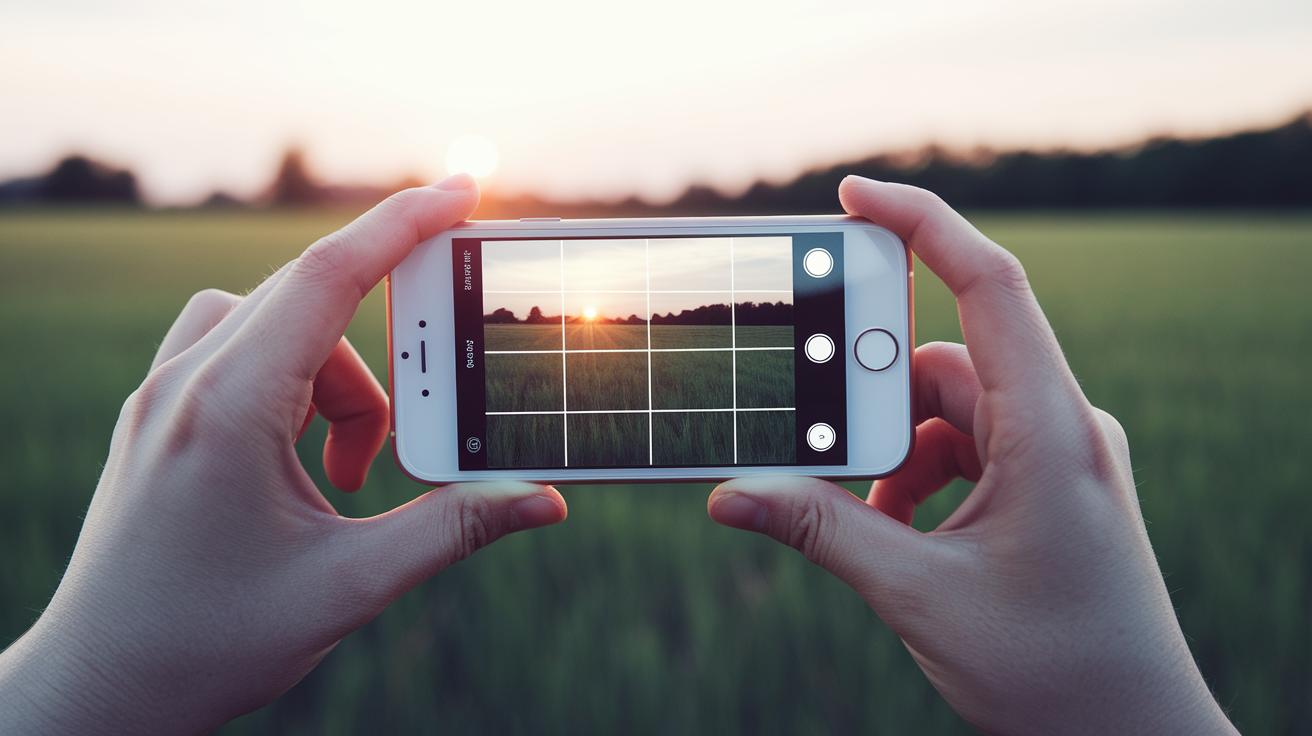
Samsung's camera options make it easy to get creative with your shots. A handy grid overlay (like the rule of thirds, which divides the frame into nine parts) guides you to line up your subject just right. For example, try placing your subject on one of the grid intersections instead of right in the center.
Custom controls let you move the shutter button or even use the volume keys to snap pictures quickly. You can tap and hold on the focus area to lock in the exposure, keeping your lighting steady in busy scenes.
Different aspect ratio choices, 1:1, 4:3, 16:9, or full screen, help you match the frame to your style. Quick-launch options, like double-pressing the power button or using Widgets and Lock-screen shortcuts, get you shooting in a flash.
For a creative twist, try shifting the grid a bit. Start with the standard grid overlay, then adjust your framing to add a unique touch. For instance, placing your subject just off the central line can create a more lively image.
Final Words
In the action, we explored Samsung camera options from Pro Mode controls to specialized shooting modes and composition helpers. We broke down manual adjustments, creative features, and handy apps that empower users to capture stunning images. Each setting, from grid lines to super slow-mo, adds value to your photography experience. The guide ensures you can mix practical techniques with advanced settings for impressive results. Enjoy experimenting with these samsung camera options and embrace the creative potential they unlock.
FAQ
What are Samsung camera settings for best pictures?
Samsung camera settings for best pictures typically combine Pro Mode manual controls, smart HDR, and scene optimizer to fine-tune ISO, shutter speed, white balance, and focus for balanced exposure and sharp detail.
What camera options are available on Samsung smartphones and tablets compared to iPhone?
Samsung camera options on smartphones and tablets provide extensive manual controls like Pro Mode that aren’t available on iPhones, offering a wider range of settings for users seeking creative flexibility.
How are Samsung phone camera settings explained?
Samsung phone camera settings are explained by grouping automatic features with manual options like Pro Mode, grid lines for composition, and scene optimizers that automatically adjust for different subjects and lighting.
What are the best settings in Samsung’s Pro Mode?
Samsung’s Pro Mode best settings involve manual adjustments for ISO, shutter speed, white balance, exposure compensation, and focus peaking, giving photographers precise control over light and motion.
How do I change my Samsung camera settings?
You change your Samsung camera settings by opening the camera app, tapping the gear icon to access preferences, and selecting options like Pro Mode, scene optimizer, grid lines, and customized controls.
What are the five basic camera settings on Samsung devices?
The five basic camera settings on Samsung devices typically include ISO, shutter speed, white balance, exposure compensation, and focus, which together help balance light, clarity, and color in your shots.
What hidden features does the Samsung camera offer?
The Samsung camera hidden features include customizable grid lines, document and QR-code scanning, behind-the-scenes Pro Mode options, and access to additional apps like Good Lock Camera Assistant and Galaxy Enhance-X for extra control.
What are the three cameras on a Samsung phone used for?
The three cameras on a Samsung phone are generally used for wide-angle, ultrawide, and telephoto shots, allowing users to capture diverse perspectives and varying levels of detail in their photography.
What were the notable Samsung camera options in 2021?
In 2021, Samsung camera options featured upgraded Pro Mode with manual control adjustments, enhanced low-light performance through night mode, and AI-based scene detection for more accurate auto adjustments.
What camera settings deliver best quality on the Samsung S25 Ultra?
The Samsung S25 Ultra camera settings deliver best quality when using Pro Mode with finely tuned ISO, shutter, and white balance adjustments, combined with optimized HDR and grid lines for balanced, sharp images.
What camera features are unique to today’s Samsung models like the Galaxy S25 series, Galaxy A56 5G, and Galaxy Z Fold 7?
Today’s Samsung models offer advanced features such as enhanced Pro Mode controls, AI scene optimization, customizable controls, and specialized modes like night, timelapse, and super slow-mo to adapt to various shooting conditions.