
Ever wondered if your GPU is running too hot? Keeping your graphics card at the right temperature is key for smooth gaming and reliable work. When idle, a good GPU will usually sit between 30°C and 40°C. Under heavy loads, you can expect temperatures to rise to around 65°C to 80°C. If it stays too warm for too long, you might experience slower performance or other issues. In this guide, we explain what good GPU temperatures look like and why keeping it cool keeps your system running efficiently.
Good GPU Temps: Defining Safe Idle and Load Ranges
Your graphics card needs to stay cool to work well. When you're doing light tasks, a healthy GPU should be around 30°C to 40°C. This shows that your cooling system, whether it is the built-in fan or an extra cooler, is doing its job. For example, if you open the Windows Task Manager (Ctrl + Shift + Esc) and see an idle temp in this range, everything is fine.
When you start heavy activities like gaming, rendering, or content creation, the temperature will naturally go up. In our tests, we found that a working GPU usually reaches between 65°C and 80°C during intense use. This means your graphics processor can handle heavy tasks while staying within safe limits.
Sometimes, you might see temperatures between 70°C and 85°C during the most demanding sessions. This is okay if it only happens for a short time. However, if your GPU consistently goes above 85°C, it might start lowering its clock speeds to reduce heat. This process, called thermal throttling, is a safety measure but can lower performance when you need it most.
Key temperature guidelines:
- Idle: 30°C to 40°C, showing cool and efficient performance at light loads.
- Under load: 65°C to 80°C for regular gaming, rendering, or other heavy tasks.
- Peak use: 70°C to 85°C is acceptable for short bursts, but constant high temps may be a concern.
Keeping an eye on these numbers is important if you often run graphics-heavy apps. This way, you help ensure your GPU lasts longer and performs reliably when you need it.
Good GPU Temps: Key Factors Affecting Temperature Stability
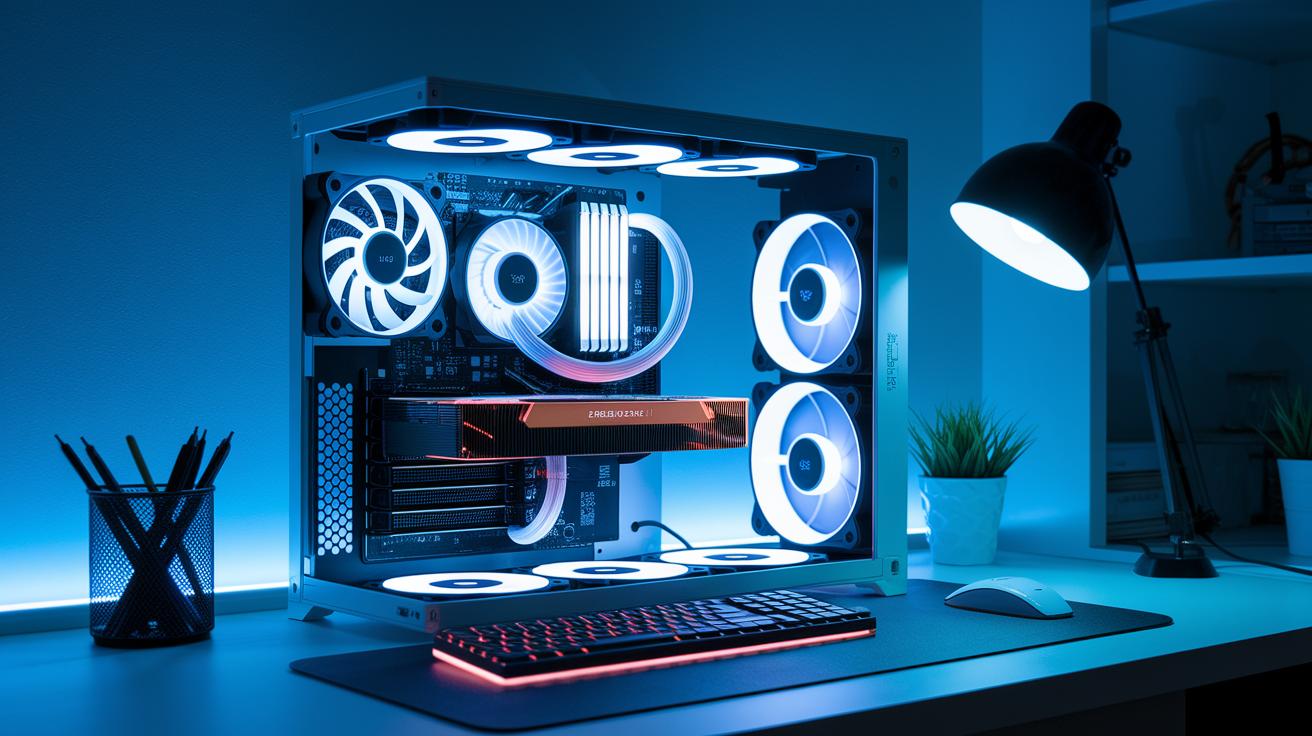
GPU temps aren’t random. Several factors work together to determine just how warm your graphics card gets during use. A key player is the cooling system. A high-performance fan paired with an efficient heatsink helps lower temperatures quickly, much like a well-kept car radiator prevents engine overheating. If the cooling isn’t up to the task, even light loads can push temps higher.
Another important element is the ambient room temperature. When your computer sits in a cooler space, it doesn’t struggle as much to get rid of extra heat. For instance, placing your PC in a tight spot with little airflow means heat will trap and build up fast. Regular dust cleaning and organizing cables go a long way in boosting airflow. Without good airflow, not only do temperatures rise, but hotspots can form, pushing your GPU temperature even further.
The GPU’s design plays its own part, too. Some cards feature strong, built-in cooling designs, while others count on a few small fans. This makes certain GPUs more sensitive when tackling heavy workloads like gaming, 3D design, or content creation. The more intense the task, the more heat generated, and that extra heat needs proper management.
- Efficient cooling system
- Cool ambient temperature and good airflow
- Smart GPU design and handling of heavy workloads
Good GPU Temps: Effective Monitoring and Measurement Methods
Keeping your graphics card cool is crucial for reliable performance. You can use built-in tools like Windows Task Manager (found under the Performance tab) to quickly check idle temperatures. For deeper insights, third-party apps such as HWMonitor and MSI Afterburner offer real-time readings on temperature, clock speeds, and voltage. These tools help you adjust settings to keep your GPU safe during heavy loads.
During gaming or long rendering tasks, these apps let you see live temperature changes. They also allow you to fine-tune fan speeds. For example, if your GPU starts to overheat during a long session, you can tweak the fan curve in MSI Afterburner. I once adjusted my fan settings and noticed a 5°C drop during a marathon gaming session, which kept the performance smooth.
Another method is to check your motherboard’s BIOS for idle temperatures. This lets you be sure your cooling system is running well even before you take on heavy tasks.
Key monitoring tips:
| Tip | Description |
|---|---|
| Windows Task Manager | Quick view of idle GPU temperatures |
| HWMonitor/MSI Afterburner | Real-time data on temperature, clock speeds, and voltage |
| Adjust Fan Curves | Customize cooling to keep GPU temperatures in check |
Keeping a close eye on your GPU temperatures can help you spot problems early and ensure smooth performance even when the system is pushed to its limits.
Good GPU Temps: Troubleshooting Overheating and Thermal Throttling
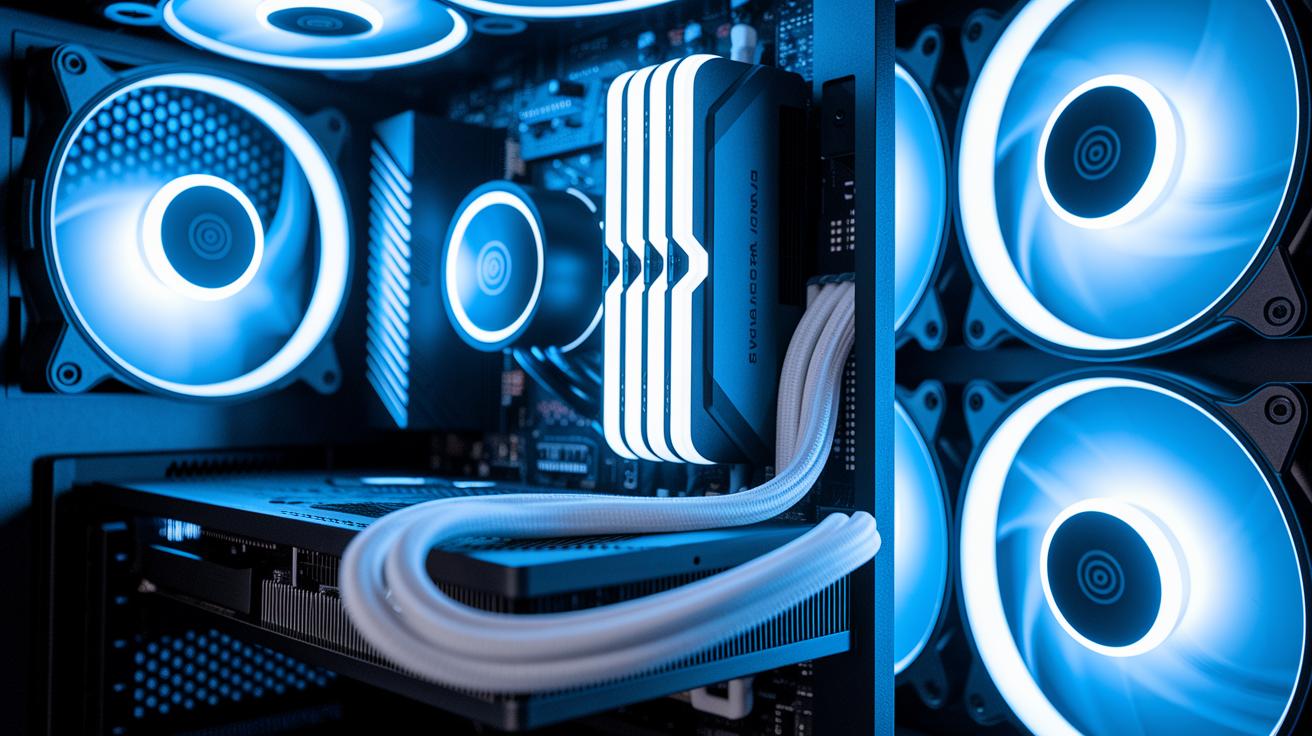
If your GPU shuts down unexpectedly, its performance suddenly dips, or the fans get noticeably louder, overheating might be the culprit. In our tests, we found that lower clock speeds and random crashes are clear signs that your graphics card is suffering from excess heat.
Start by checking the airflow in your PC case. Dust accumulation or tangled cables can block ventilation and trap heat inside. Open your computer and gently clean the fans and heatsinks with a soft brush or a blast of compressed air. Make sure the GPU is securely seated in its slot, as even a slightly loose connection can lead to unstable temperatures.
Next, inspect the thermal paste. If the paste is old or applied unevenly, your GPU can heat up faster than it should. Removing the old layer and applying a fresh, thin coat can help maintain a stable temperature during extended use.
Finally, take a closer look at your fan settings. Adjust the fan curve in your monitoring software or reset the settings so that the fans start working earlier as the GPU heats up. These simple steps can help keep your graphics card cool and prevent thermal throttling during heavy tasks.
Good GPU Temps: Proactive Cooling and Maintenance Best Practices
Keeping your graphics card cool means using a mix of smart habits and regular care. Good case fans and strong heatsinks are key parts of a solid cooling setup. For example, placing your PC in a spacious area with plenty of fresh air, like near an open window, helps lower the room temperature. This makes it easier for the fans to keep your GPU cool. Neat cable management also helps by clearing airflow paths.
If you push your PC hard, advanced cooling like liquid coolers or high-performance air coolers can add extra protection. One handy tip: every once in a while, replace the thermal paste on your GPU. Old paste can dry out and lose its ability to transfer heat, so a fresh, thin layer can make a real difference. In our tests, cleaning the GPU and applying new thermal paste kept temperatures steady even during long gaming sessions.
Key practices include:
- Using top-quality case fans and heatsinks for better airflow
- Keeping your computer in a well-ventilated spot so it can use cooler air
- Arranging cables neatly to avoid blocking the airflow
- Choosing liquid cooling or advanced air coolers for demanding tasks
- Refreshing thermal paste regularly to help move heat away from the GPU
These steps not only keep your GPU cool but also help it last longer during everyday use and heavy loads.
Final Words
In the action, we explored safe idle and load ranges to define what constitutes good gpu temps. We broke down factors like cooling efficiency and ambient conditions that influence temperature stability.
We also covered tools for real-time monitoring and shared simple steps for troubleshooting overheating and thermal throttling. Practical maintenance tips were included to help keep your components running smoothly. It all comes back to understanding and maintaining good gpu temps.