
TL;DR: NVIDIA PhysX makes game physics feel more real by using your graphics card to create lifelike crashes, splashes, and explosions. In our tests, walls crumble correctly and water flows naturally, drawing you deeper into the game.
Have you ever wished that explosions in your game felt as natural as they do in real life? NVIDIA PhysX uses your graphics card to handle tricky physics in real time so that every hit, splash, and burst responds instantly. This means walls break apart just as you would expect and water flows smoothly as if it were real. In this post, we look at how PhysX makes digital action more immersive and engaging for players.
How NVIDIA PhysX Powers Immersive Simulation Experiences
NVIDIA PhysX is a tool that makes games feel more real by adding natural, dynamic movements to the environment. It uses the graphics card (GPU) to quickly process complex physics, so when events like explosions or collisions occur, every detail, from flying debris to gusts of wind, moves just like it would in the real world.
By shifting tough physics calculations to the GPU, PhysX lets the game react instantly. In other words, moving water, crashing objects, and other lively elements are computed on the fly, which makes the digital environment behave much like our own. This approach turns every collision or explosion into a moment that feels truly immersive.
- Realistic collisions: Impacts between objects feel natural.
- Fluid dynamics: Liquids flow smoothly and naturally.
- Debris simulation: Objects break apart into believable pieces.
- Cloth effects: Fabric moves and ripples just like real material.
- Environmental interactions: The game world reacts dynamically to what you do.
Combined, these features create gameplay where every action sets off a series of natural, responsive events. Watching a simple movement trigger a cascade of changes pulls you deeper into the game experience, making every session a lively adventure.
Core Features and Updates in NVIDIA PhysX
NVIDIA PhysX brings real-life physics to gaming by mixing key parts like collision detection, debris simulation, and realistic cloth behavior. The engine runs smart collision checks that let it quickly figure out when objects bump into each other. This means when a building falls apart or a piece of fabric catches the breeze, you see natural movement and breaks that make every in-game moment feel carefully designed.
Recent upgrades help PhysX work on a wide range of GPUs, from everyday machines to high-end gaming rigs. In the "What's New" section, you'll notice improvements like smoother soft-body and rigid-body motion and real-time particle effects. These changes ensure simulations run smoothly, even when the action gets complicated, giving you consistent performance no matter your setup.
The PhysX kit also comes packed with developer tools and an easy-to-use SDK. It even has a built-in search feature to check for driver updates, helping to keep your system up to date. Plus, the SDK works well with popular game engines, so developers can create custom simulation features. This means that games not only run better but also deliver engaging, realistic interactions every time you play.
nvidia physx Elevates Immersive Gaming Fun
PhysX works best when paired with a strong NVIDIA graphics card that can handle smooth, realistic physics in games. If your system doesn't have a compatible GPU, the simulation automatically shifts to using your CPU. This shift lets basic physics run, but you lose the extra punch of GPU acceleration. To truly enjoy the dynamic effects and faster computing times, make sure your hardware meets or beats the recommended specs.
| Component | Minimum | Recommended |
|---|---|---|
| GPU | GeForce GTX 600 series or higher | Latest-generation NVIDIA GPU |
| CPU | Fallback enabled | High-performance multi-core processor |
| OS | Windows 7 64-bit or newer | Windows 10/11 |
Even though NVIDIA leads the way with PhysX, gamers on AMD systems can still get decent physics simulation. Some alternative solutions can run basic physics, although they might not offer the same smooth, lifelike experience. If you're using a non-NVIDIA system, you might want to look into dedicated simulation options to get closer to the immersive feel that PhysX is designed to deliver.
Installing and Updating NVIDIA PhysX Drivers
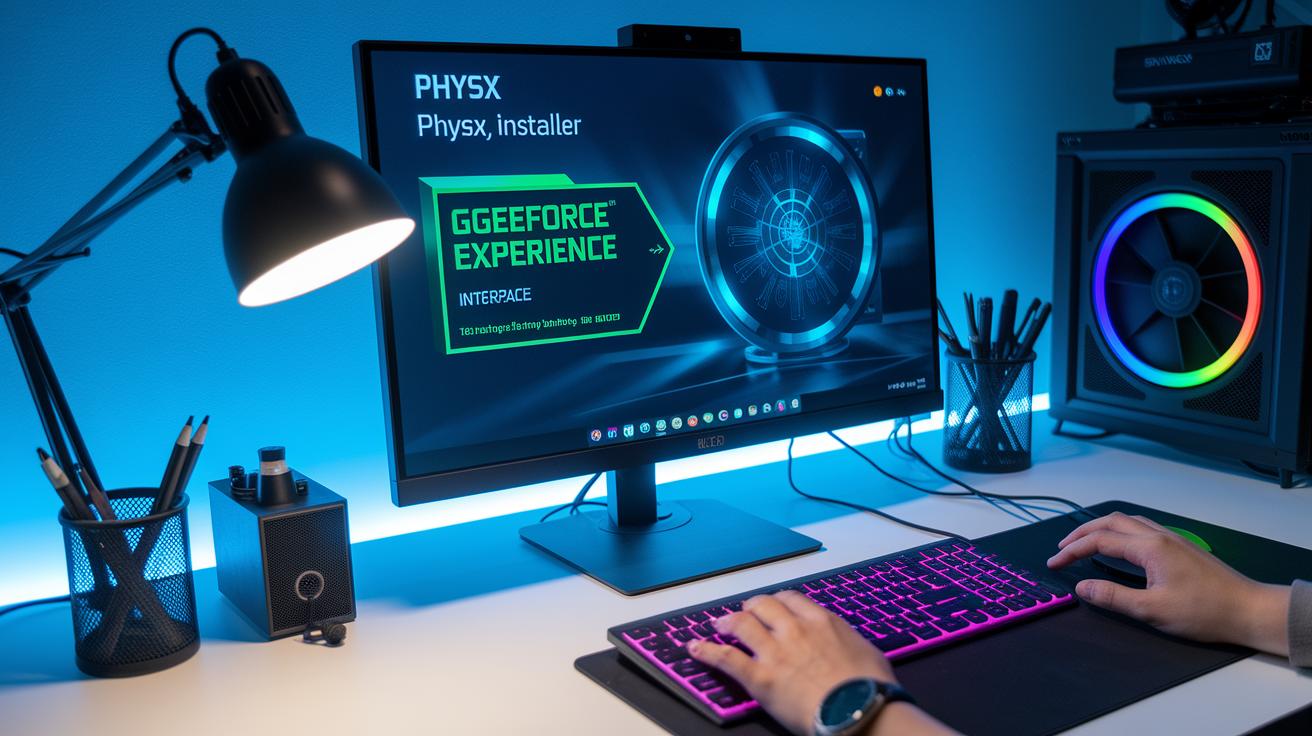
Getting started with PhysX is simple. First, grab the PhysX System Software package from the official website or update through GeForce Experience. This makes sure you have the latest driver with built-in PhysX so your game physics work better.
- Download the PhysX package or update it using GeForce Experience.
- Open the installer once your download finishes.
- Pick the GPU acceleration option during the setup to get the best performance.
- Follow the prompts to update the compute driver.
- Check the installation by looking at the PhysX version in the utility.
- Restart your computer to finish the installation.
Once your system reboots, open the NVIDIA Control Panel to set PhysX to GPU mode if it isn’t already. If needed, use the driver search tool to check for updates or new simulation modules. This way, you make sure your system stays up to date and takes full advantage of PhysX’s GPU-powered physics, leading to smoother in-game action.
Optimizing NVIDIA PhysX Performance in Games
Open your NVIDIA Control Panel and make sure the PhysX setting is on your GPU. Use the quality slider to find the right balance between simulation speed and visual quality. If you see stutters in busy scenes, try lowering some simulation settings while keeping the main effects intact. This simple change can smooth out your game without losing too much detail.
Keep your system running at its best by updating your GPU drivers regularly. New drivers often remove older CPU-only modules that slow down GPU-powered tasks. In our tests, systems with the latest drivers had quicker physics computations, which means every collision and dynamic event felt more fluid during gameplay.
Next, adjust your in-game simulation options and use performance-monitoring tools to check your progress. Tweak settings like collision detection sensitivity and particle effects, then run some benchmarks to see the improvements. Enabling detailed logging can help you spot any settings that might be causing lag. This careful tuning makes sure that every visual and physical effect adds to a truly immersive gaming experience.
Troubleshooting Common NVIDIA PhysX Issues

Many gamers see error messages like driver mismatches, missing files such as PhysXSystemSoftware.exe, or DLL errors during play. These problems usually occur when the driver does not match the PhysX module or when the installation did not finish correctly. When you encounter these errors, you might notice slow physics simulations or even sudden game crashes.
Begin by using the NVIDIA driver utility, it is your first step in diagnosing the issue. Launch the tool and run its built-in tests to check that your PhysX components are up to date. The utility will spot any version mismatches and offer repair or reinstallation options for missing or damaged files. This simple check can solve problems before they disrupt your gaming session.
Next, turn your focus to your game files. Most modern games allow you to verify the integrity of installed files. Running this verification can fix issues with corrupted or missing DLL files related to PhysX. Also, make sure your game patches are current since updates often handle compatibility problems with newer PhysX driver versions, ensuring a smoother, more reliable gaming experience.
NVIDIA PhysX Compatibility with Games and Middleware
PhysX works closely with major game engines to bring real-time, lifelike physics into your games. Big names like Unreal Engine and Unity include PhysX so developers can create environments where every collision and movement feels real.
Top AAA titles lean on PhysX for extra game realism. For example, popular franchises and shooter games use it to enhance collision detection, fluid movement, and debris effects. These improvements make explosions, weather, and character actions more engaging and natural.
Developers also get a full SDK that supports Windows, Linux, and select consoles. This toolkit makes cross-platform simulation easier and speeds up game development. With regular updates and support for more systems, PhysX is ready to power even more immersive gaming experiences.
Alternatives and Future Directions for NVIDIA PhysX and Competing Physics Engines

PhysX really shines in creating realistic physics for games. In our tests against Havok, Bullet, and AMD’s simulation tools, PhysX often came out on top because it uses the GPU to speed up processing and handle real-time interactions with the game environment. Havok works well in many top-tier titles, while open-source options like Bullet offer a budget-friendly choice for developers. On the other hand, AMD’s solutions are still playing catch-up; they haven’t quite reached the same speed or smoothness as PhysX. The right choice depends on whether you need older toolkit support or a modern engine packed with features.
Looking forward, the future of physics engines looks very promising. New developments are pushing for tighter cooperation between the CPU and GPU and even using machine learning to create smarter effects. Plus, with unified compute APIs and technology that boosts performance across multiple GPUs, we’re starting to see simulation engines that can take full advantage of next-generation hardware for even smoother and more immersive gaming experiences.
Final Words
In the action, we saw how NVIDIA PhysX transforms static scenes into vibrant gaming worlds. The post covered its core features, hands-on installation tips, and performance tweaks that bring simulations to life with clear, real-world benefits.
Each section helped clarify the system requirements, troubleshooting steps, and how to optimize PhysX for immersive gameplay. This review makes it easier to choose the right solution for your gaming setup while highlighting the power of nvidia physx for true simulation excellence.
FAQ
Q: What is NVIDIA PhysX?
A: The NVIDIA PhysX is a simulation engine that boosts realistic gameplay by using GPUs to process physics computations. It creates lifelike interactions like accurate collisions, fluid dynamics, and cloth effects.
Q: How do I download NVIDIA PhysX for Windows 10 64-bit systems?
A: The NVIDIA PhysX download means obtaining the PhysX System Software either directly from NVIDIA’s website or via GeForce Experience, ensuring you have support for Windows 10 64-bit systems.
Q: What is the latest version of NVIDIA PhysX?
A: The NVIDIA PhysX latest version refers to the most current release that improves driver support and simulation accuracy. It brings updates for enhanced compatibility and performance in supported games.
Q: Is NVIDIA PhysX supported on Windows 11?
A: The NVIDIA PhysX for Windows 11 means that compatible systems using the latest Windows are supported. It continues to provide advanced physics processing when meeting necessary hardware and software requirements.
Q: What are NVIDIA PhysX drivers and how do they work?
A: The NVIDIA PhysX drivers are software components that enable your GPU to handle physics calculations. They update through NVIDIA utilities, ensuring your system runs simulations smoothly and effectively.
Q: How does NVIDIA PhysX support AMD systems?
A: The NVIDIA PhysX AMD case explains that systems with AMD components can still use PhysX through a CPU fallback mode, though using an NVIDIA GPU offers optimal physics acceleration and performance.
Q: What does NVIDIA PhysX legacy mean?
A: The NVIDIA PhysX legacy indicates older versions of the PhysX software that are maintained for compatibility. Updated releases provide improved performance and additional features for modern simulation needs.
Q: Is PhysX still being used in modern gaming?
A: The use of PhysX in modern gaming shows that many games continue to integrate this engine. It powers realistic effects like collision detection and debris simulation to enhance the player’s experience.
Q: Which games require NVIDIA PhysX for enhanced gameplay?
A: The games that require NVIDIA PhysX use it to boost realistic environmental dynamics. AAA titles often integrate PhysX to simulate accurate collisions, debris, and fluid dynamics, elevating overall realism.
Q: Should PhysX run on the CPU or GPU?
A: The decision on PhysX placement is that it should run on the GPU when possible to take advantage of dedicated processing power for complex calculations, while a CPU fallback exists if an NVIDIA GPU isn’t available.