
Have you ever seen strange glitches pop up on your screen while gaming? Sometimes random lines and colorful dots distort even the clearest images, making gameplay feel off. It’s like trying to read a book with smudged pages, really frustrating. Today, we explain why these issues happen and what they could mean for your system's health. We’ll break down the most common causes to help you spot warning signs before they turn into bigger problems.
gpu artifacting Shines With Clean Graphics
GPU artifacting happens when visual glitches such as random lines, distorted symbols, colored dots, or flickers disturb what you see on the screen. This is common during gaming or heavy graphics work and makes images look off, which can be confusing and even affect system stability.
When you spot these odd visuals, it means your GPU might not be processing data smoothly. Often, the issue comes from parts of your graphics card (like the VRAM) not working as they should. Catching these problems early can help you avoid more serious issues down the line.
There are a few common reasons for GPU artifacting. For example, a manufacturing flaw in VRAM chips can lead to unpredictable behavior under heavy data loads. Overclocking the GPU with tools like Precision X1 may push it past what it can handle if the cooling isn’t sufficient. High temperatures from poor airflow or degraded thermal paste, outdated or corrupted drivers, and even power supply quirks can make the problem worse. All these factors not only mess with your graphics but can also impact overall system stability.
Top 5 common artifact types:
- Random lines that show up during system start-up
- Flickering or brief display disruptions when the system is busy
- Clusters of colored dots that point to VRAM errors
- Distorted symbols or textures suggesting hardware issues
- Screen discoloration and warped shapes during intense gaming sessions
Recognizing Subtle GPU Artifacting Patterns
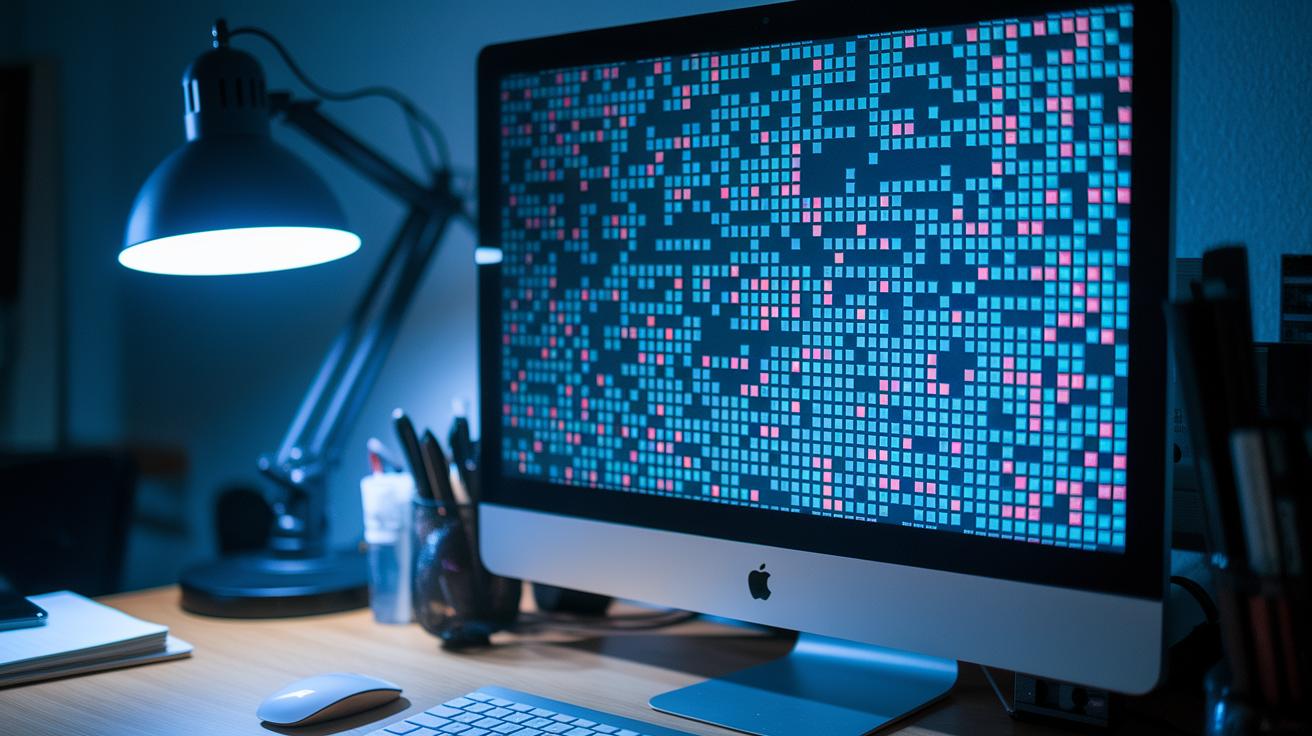
Sometimes you notice small screen glitches that might easily be overlooked, yet they suggest your system could be under extra stress. These warning signs may lead to performance problems if left unattended.
Here are a few things to watch for:
- A slight flicker on the screen during heavy tasks.
- Small clusters of unusual, colored pixels in dark areas.
- Minor distortions in shapes on flat or even surfaces.
- Brief, low-contrast texture tears.
- Temporary fragments of symbols that quickly disappear.
- A small misalignment of edges when the screen changes.
Seeing these tiny glitches means your GPU could be getting too hot or that its drivers are not running smoothly. Recognizing them early lets you use proper diagnostic tools to check stress levels, monitor temperatures, or update driver settings, which can help you keep your system running at its best.
GPU Artifacting Causes: Hardware and Software Triggers
GPU artifacting often comes from a mix of hardware trouble, software glitches, and even everyday environmental issues. Sometimes minor VRAM defects or pushing memory frequencies too hard with tools like Precision X1 can create strange visual glitches. A simple tip is to increase clock speeds slowly while watching temperature and voltage. This helps you find the safe limit before artifacts show up and keeps your GPU running smoothly.
Software problems can play a big role too. Outdated or damaged drivers might not process graphics correctly. If you see artifacting, check your driver version and compare it to the manufacturer's suggestion. Updating or rolling back your driver can reveal if the problem is a software miscommunication rather than a hardware fault.
The environment also affects your GPU. Clogged fans, worn-out thermal paste, or dust buildup can raise internal temperatures and stress your system. Tools like MSI Afterburner are useful for tracking when temperatures get too high. If they do, it might be time to clean your components or upgrade your cooling setup.
Heat-related causes:
• Restricted airflow due to dust buildup and clogged fans
• Worn-out thermal paste that hampers effective cooling
• High temperatures stressing the power supply and causing voltage swings
• Warm ambient air lowering cooling efficiency
Software-related causes:
• Outdated drivers that do not match current system updates
• Corrupted drivers interrupting normal data processing
• Unstable driver versions that harm graphic rendering
• Conflicts from recent driver updates leading to miscommunication with the GPU
Diagnosing GPU Artifacting: Tools and Step-by-Step Methods

If you notice strange visuals on your screen, a clear diagnostic process can help find the issue. Instead of just updating your drivers, you'll need to work through a few simple tests. First, use Display Driver Uninstaller (DDU) to check your GPU driver installation. Then, keep an eye on the temperature with MSI Afterburner. Next, run MemTestG80 to stress your VRAM and uncover any memory faults, and finally, verify your power supply’s stability using a PSU tester. These steps help you figure out if the artifacting comes from software glitches or a hardware problem.
| Tool | Purpose |
|---|---|
| Display Driver Uninstaller (DDU) | Safely remove and reinstall GPU drivers |
| MSI Afterburner | Monitor GPU temperature and tweak clock speeds |
| MemTestG80 | Stress-test VRAM to spot memory errors |
| PSU Tester | Check if your power supply is stable and secure |
- Remove your current drivers with DDU and install a stable version to check if that fixes the issue.
- Watch your GPU’s temperature with MSI Afterburner during heavy use. If it runs hot, consider reducing the clock speeds.
- Use MemTestG80 to stress the VRAM and detect any faults that might cause visual glitches.
- Inspect your GPU for any visible damage, such as cracked solder or issues with the VRAM chips.
- Use a PSU tester to ensure your power supply delivers steady voltage and all connections are secure.
Following these steps will help you pinpoint the cause of GPU artifacting and decide whether a software fix or a hardware repair is needed.
GPU Artifacting Fixes: Software and Driver Solutions
Start by tackling the software and driver side of the problem. Updating or reinstalling your GPU drivers often clears up artifacting. A fresh driver installation removes glitches caused by old or damaged files, using tools like Display Driver Uninstaller can help with that. Upscaling tools such as DLSS, FSR, or XeSS also ease the load on your graphics card, reducing artifacting without hurting performance.
Sometimes, switching back to an earlier, more stable driver version fixes issues that crop up after an update. A firmware update can also ensure that your GPU talks properly with your system. These software fixes typically clear up the visual issues that hurt your display clarity.
- Update the GPU drivers with the latest stable version from your manufacturer.
- Reinstall drivers using Display Driver Uninstaller to remove any corrupt files.
- Roll back to a previously stable driver version if recent updates trigger artifacting.
- Activate upscaling tools like DLSS, FSR, or XeSS to lower the GPU load.
- Apply available firmware updates to keep your system in sync.
If these methods don't fix the artifacting, it might mean there are deeper hardware issues that software fixes can't solve. In that case, it's best to get professional help or look into hardware repairs.
Preventing GPU Artifacting: Thermal Management and Routine Maintenance
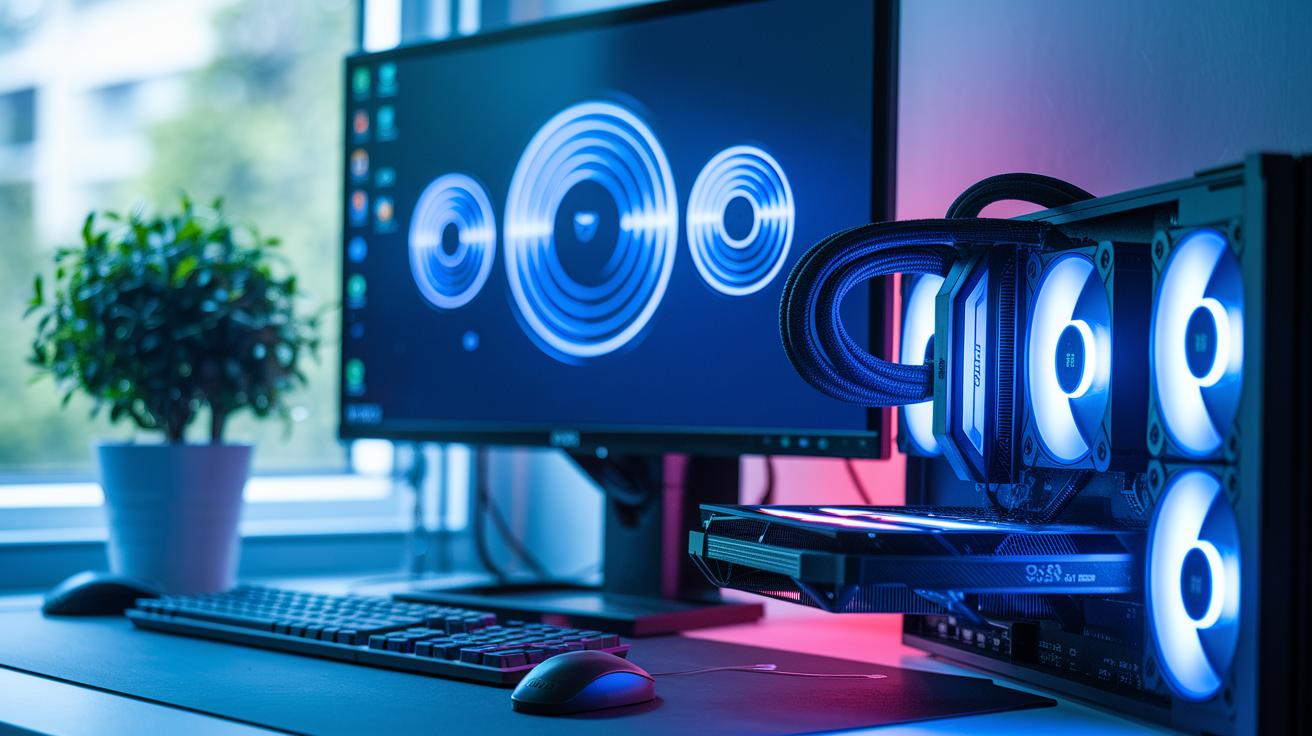
Keeping your GPU cool is essential to avoiding display issues like screen distortions or colored dots. Overheating can cause glitches, so using a tool like MSI Afterburner to monitor temperature spikes under heavy use is a smart move. When your GPU runs at lower temperatures, its parts work safely, reducing the risk of damage to VRAM or the chip itself.
Simple maintenance goes a long way in keeping your graphics stable:
- Dust off fans and heatsinks frequently.
- Reapply high-quality thermal paste on your GPU every so often.
- Add or upgrade case fans to boost airflow.
- Use temperature monitoring software to catch any overheating early.
- Organize internal cables so that air can flow freely.
- Check and clean air filters regularly for proper ventilation.
Following these steps helps control thermal buildup and extends your GPU's lifespan while keeping your display clear during gaming or heavy graphics work.
Advanced GPU Artifacting Troubleshooting: Component Replacement and Professional Repair
If common fixes like driver updates, underclocking, or improved cooling don't clear up the artifacting on your screen, it's time to consider a repair or replacement. When small tweaks make a brief improvement but the problem keeps coming back, it might mean the hardware is showing signs of wear or even internal damage. Testing with an inexpensive card like the GTX 1030 (2 GB VRAM, around $100) can give you a baseline to see if the GPU is the culprit or if another component might be causing the issue.
If the problem persists despite your troubleshooting efforts, a professional repair could be the safest bet. Often, continued artifacting points to issues like faulty VRAM chips, poor soldering, or a power supply that isn’t delivering enough power. In such cases, it might be worth upgrading components like the motherboard, RAM, or power supply to give your GPU the reliable support it needs. Here are some advanced steps to tackle these stubborn issues:
- Underclock the GPU to reduce heat and stress.
- Compare performance with a budget GPU like the GTX 1030.
- Begin an RMA process for the GPU or PSU if physical defects are found.
- Consider upgrading key components such as the motherboard, RAM, or power supply for added system stability.
Final Words
In the action, we explored gpu artifacting from its causes and symptoms to step-by-step testing and fixes. We discussed how to spot both obvious and subtle graphics issues while highlighting practical solutions like driver updates, temperature checks, and routine maintenance.
We also laid out advanced troubleshooting steps for when straightforward fixes aren’t enough. Follow these guidelines to maintain clear visuals and stable performance. With these insights, you can confidently handle gpu artifacting and keep your system running smoothly.
FAQ
What does GPU artifacting on Reddit refer to?
The GPU artifacting on Reddit refers to user-shared experiences about random visual glitches such as flickering, distorted textures, or colored lines that may indicate GPU or memory problems.
How can I test for GPU artifacting?
The GPU artifacting test involves stress-testing with tools like FurMark, Superposition Benchmark, or Heaven Benchmark while monitoring temperature and performance with MSI Afterburner to reveal rendering issues.
What are GPU artifacting examples and lines?
The GPU artifacting examples include visible pixel clusters, screen flickers, and random colored lines that disrupt normal image rendering, often pointing to overheating, driver conflicts, or VRAM issues.
How can I fix GPU artifacting and which software assists?
The GPU artifacting fix involves updating or reinstalling drivers with AMD Radeon Software, possibly rolling back with diagnostic tools, and using software like MSI Afterburner to manage temperatures and settings.
What causes GPU artifacting?
The GPU artifacting causes stem from hardware flaws like defective VRAM, overheating from poor airflow, aggressive overclocking, and outdated or corrupted drivers, all contributing to visual anomalies.
How does GPU artifacting affect in-game performance?
The GPU artifacting in game appears as distorted visuals or flickering during play, which can distract from the gaming experience and hint at underlying hardware or driver issues that need attention.
Is it safe to use a GPU that shows artifacting?
The safety of using a GPU with artifacting is questionable since these visual glitches often signal hardware instability that might worsen over time, potentially leading to complete failure.
What are the signs of a failing GPU?
The signs of a failing GPU include recurring visual glitches, system crashes, abnormal fan behavior, and driver errors, all indicating that the hardware may be experiencing critical issues.
Can I use 70% isopropyl alcohol to clean my GPU?
The cleaning option with 70% isopropyl alcohol is acceptable, though higher concentrations like 90% are recommended since they evaporate more quickly, reducing the risk of moisture damage.
Can a motherboard cause GPU artifacting?
The possibility exists that a motherboard can cause GPU artifacting if there are issues with PCIe slots or power delivery; however, artifacting is more commonly linked directly to the GPU itself.
What software tools help diagnose GPU artifacting?
The software tools such as FurMark, Superposition Benchmark, Heaven Benchmark, MSI Afterburner, 3DMark, and AMD Radeon Software are used to stress-test the GPU, monitor performance, and detect artifacting issues.