
TL;DR: Worried about your Android's online privacy? This guide walks you through using the Google Play Store to set up a VPN, making it simple even for non-tech-savvy users.
Does your smartphone need a privacy boost? Many Android users think about keeping their data safe while browsing. We tested an easy method to set up a VPN via the Google Play Store, so you can protect your information without the fuss.
We break down every step. You'll learn how to connect to your VPN, adjust settings, and browse more securely. Even if you aren’t a tech expert, you can follow along and safeguard your digital life.
Read on to discover how quick and stress-free securing your smartphone can be.
Quick Start Guide for VPN Setup on Android Smartphones
Using a VPN on your Android helps protect your data by hiding your online activity from prying eyes like ISPs and hackers. In our tests, installing a VPN is simple, even for newcomers, and takes just a few minutes through the Google Play Store. Here’s a step-by-step guide that works on Android versions 10 to 13.
- Open the Google Play Store and look up your VPN app. When you find a service that suits your needs, tap install.
- Once installed, open the app and allow any network permissions it asks for. These permissions let the app create a secure connection.
- If the app asks, enter the server address manually or choose a server region from the list. This sets the virtual location for your connection.
- Enter the username and password provided by your VPN service. Making sure these details are right is key to a secure link.
- Select the VPN protocol. You can stick with the app’s default or choose a stronger option if you want to balance speed with extra security.
- Turn on the VPN by toggling the switch. You should see a key icon in your notification bar, which means you’re connected securely.
Follow these simple steps to boost your online privacy and enjoy a safer browsing experience anytime you go online.
Selecting the Best VPN Provider for Android Security
To keep your Android safe, it's smart to pick a VPN that blends good privacy with steady performance. Our tests show that free VPNs often come with data caps, slower speeds, and extra privacy concerns, like hidden tracking tools and excessive permission requests. In contrast, paid VPNs under $10 a month usually deliver faster, more reliable connections and stick to a strict no-logs policy, so your online activity stays private.
When looking at VPNs, check details like data limits, the size of the server network, and connection speeds. Make sure the privacy policy clearly says that no user activity is stored and that strong encryption is used, which protects your data from ISPs and other risks. Many providers also offer a trial period so you can test the service before committing.
Key features to look for include:
- A no-logs policy to stop data collection.
- Strong encryption protocols for solid security.
- A kill switch to protect your data if the connection drops.
- Support for multiple devices to secure all your gadgets.
Take a close look at how each provider handles permission requests and data limits. This careful check helps ensure the VPN you choose not only boosts your Android's security but also provides a smooth, hassle-free experience.
how to setup a vpn on android: Effortless
Setting up a VPN on your Android is easy and puts you in charge of your connection. First, open Settings, tap Network & Internet, and then select VPN. Next, tap Add VPN Profile to get started with the manual setup. You can choose from options like L2TP/IPSec, PPTP, or IKEv2, each offering a different balance between speed and security. For example, L2TP/IPSec gives a good mix of both, while IKEv2 usually provides stronger encryption when you need extra protection. This method uses your device’s built-in settings, so you don’t need extra apps cluttering the process.
During setup, you'll need to enter specific details like the server address, pre-shared key or certificate (if required), username, and password. The server address tells your device where to connect, and the key or certificate creates a secure, encrypted tunnel. Make sure these details match the information provided by your VPN service. Manual configuration is ideal if you want full control over your connection, even though it lacks features like auto-reconnect or a kill-switch that some third-party apps offer. If you run into issues, double-check each field for typos or errors to keep your connection secure and stable.
Configuring VPN with a Third-Party Android App
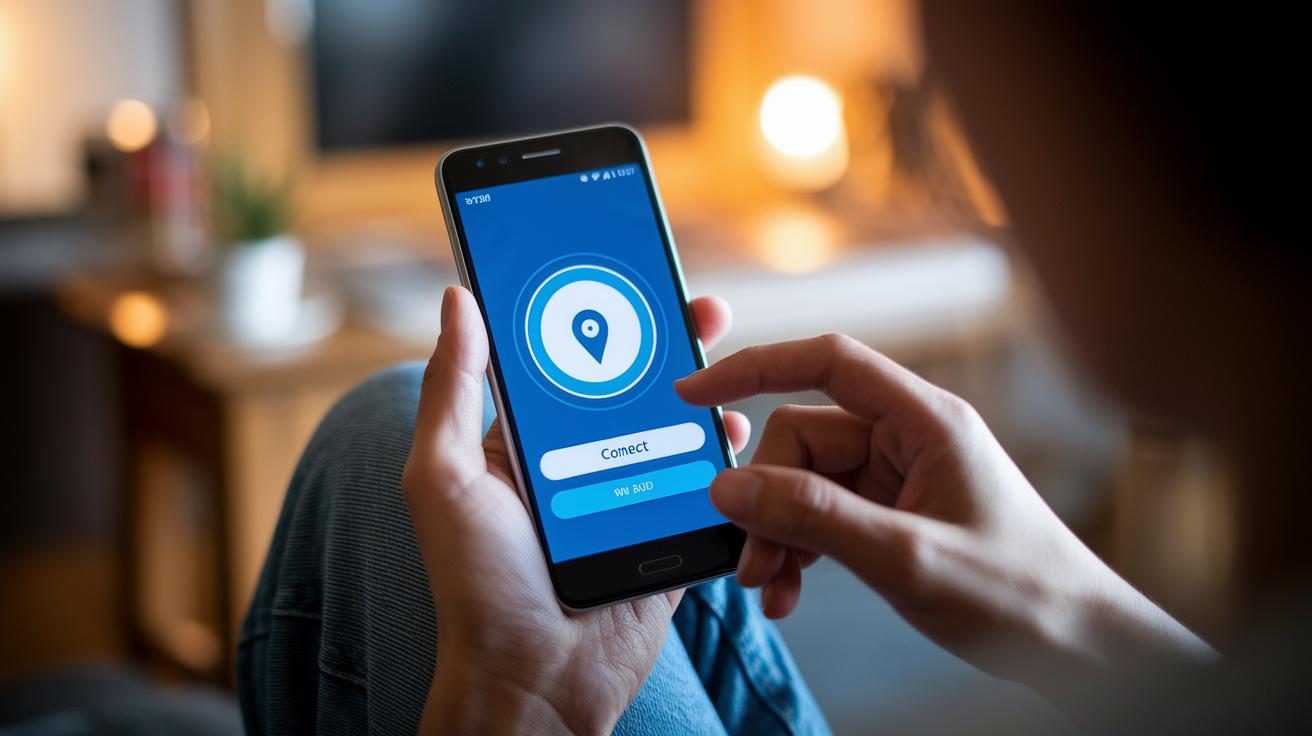
Setting up a VPN on your Android can be simple when you use a third-party app like OpenVPN Connect or WireGuard. These apps let you import your VPN files and handle most of the setup for you. In our tests, these apps offer handy features such as one-tap connect, protocol switching, a kill-switch for extra security, and auto-connect if the connection drops.
Follow these steps to get started:
- Open the Google Play Store and download the VPN app you prefer.
- Launch the app and allow all necessary permissions so it can create a secure tunnel.
- Import the configuration file provided by your VPN service. This may be a .ovpn or .conf file, or you might scan a QR code if the app supports it.
- Select your desired server from the built-in list or manually enter a server address.
- Choose the recommended protocol, whether it's OpenVPN or WireGuard, to balance speed with security.
- Tap the connect button and make sure the secure key icon appears in your notification area.
This method makes advanced VPN setup easy even for non-tech experts. The clear, intuitive design helps prevent setup errors and keeps your connection stable with features like auto-reconnect.
Troubleshooting VPN Connectivity on Android Devices
TL;DR: If your VPN connection fails on your Android device, start with the basics: double-check your server info, try another protocol, update your app, and reboot. These simple steps have helped us fix minor typos and glitches in countless tests.
When your VPN connection acts up, begin by checking that every detail in your VPN profile exactly lines up with your provider's instructions. Often, a simple typo or an outdated app version can be the culprit.
- Make sure your server address and login details are input correctly.
- If one protocol isn’t working, switch to a different one to sidestep any compatibility problems.
- Update or reinstall your VPN app to clear out bugs found in older versions.
- Restart your Android device to refresh network settings and clear temporary issues.
- Review any firewall or antivirus settings on your phone that might be blocking the VPN.
- Look at your encryption settings, too – about 18% of Android VPN apps use unencrypted tunneling, which can put your connection stability and security at risk.
Double-checking each of these steps is key. Missing even a small detail can mean the difference between a secure, steady connection and one that drops unexpectedly. These troubleshooting tips should help keep your Android device running smoothly and securely.
Final Words
In the action, we walked through a clear guide covering both manual and app-based VPN setups on Android. We compared free and paid services while outlining step-by-step instructions and troubleshooting tips.
This guide aimed to simplify the process even for first-timers, balancing ease of use with advanced security features. Our detailed instructions show you how to setup a vpn on android efficiently so you can enjoy a safer online experience. Enjoy your newfound online privacy and protection!
FAQ
How do I set up a VPN on my Android device, including Samsung and free options?
Setting up a VPN on Android can be done via a dedicated app from the Google Play Store or by manually creating a VPN profile in Settings > Network & Internet > VPN. Enter your provider’s details to securely connect.
What is the disadvantage of using VPN?
The disadvantage of using a VPN may include reduced speed due to encryption overhead, potential data caps on free plans, and possible privacy risks if the provider logs user activity.
Is there a free VPN for Android?
There are free VPN options for Android, but they often come with limitations like slower speeds, data limits, and broader permissions. Paid alternatives generally offer stronger security and better performance.
Does Android have a built-in VPN?
Android devices do have a built-in VPN client accessible through Settings > Network & Internet > VPN, which supports protocols like L2TP/IPSec, PPTP, and IKEv2 for secure manual configurations.