
Ever feel like your photos could use a little extra balance? The iPhone camera grid is a quick fix that splits your screen into nine equal squares to help you line up your main details using the rule of thirds. This simple trick makes your horizons and subjects stand out, giving your shots a clearer, more engaging look. In this post, we’ll show you how to turn on the grid and explain why it can make a big difference in your photos.
How to Enable and Use the iPhone Camera Grid
If you want to step up your photo game, try turning on the grid overlay on your iPhone. This simple tool helps you line up your shots with ease.
To activate the grid, follow these steps:
- Open the Settings app.
- Tap on Camera.
- Find the Grid option.
- Switch it on.
- Open the Camera app again to see the grid in action.
The grid splits your viewfinder into nine equal parts with two vertical and two horizontal lines. This clear guide makes it easier to line up important parts of your shot, much like using the rule of thirds. With the grid on, you can be sure that horizons, subjects, and other key elements are placed exactly where you want them. Whether you're taking photos or shooting video, the grid stays visible and helps you keep your compositions balanced.
Applying the Rule of Thirds with the iPhone Camera Grid
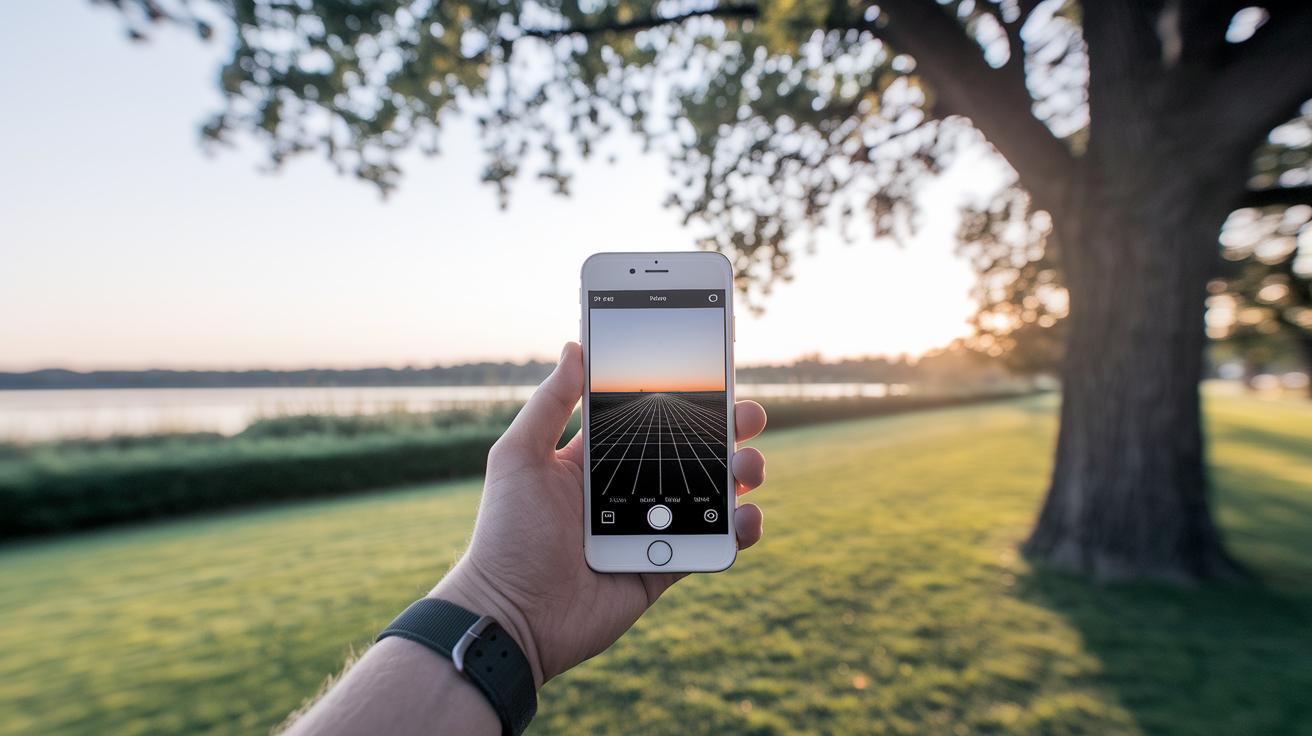
When you snap a photo, you can boost its balance and appeal by using the rule of thirds. This simple guide splits the image into nine equal parts with two vertical and two horizontal lines. Placing key elements along these lines or at their intersections gives your shot a natural balance.
The iPhone camera grid appears in real time to help you line up your subject, horizon, or any focal point. With the grid on, you are gently reminded to think about your composition before you take the picture.
For instance, if you are capturing a landscape, try lining up the horizon along one of the horizontal lines. In a portrait, positioning your subject’s eyes at one of the top intersections can make the photo look more engaging. And when you shoot action or creative scenes, placing the main subject slightly off-center along a vertical line adds a sense of movement and extra storytelling space.
This handy grid helps turn everyday snapshots into well-balanced and artistic images that feel intentional and lively.
Advanced Composition Techniques Using the iPhone Camera Grid
The iPhone grid is not just for basic framing; it can help you create more balanced and creative shots. It acts like a helpful guide for aligning subjects, drawing the eye, and organizing empty space.
Here are some tips:
- Place tall or vertical subjects along one grid line to add structure.
- Use two grid lines to steer the viewer’s eye into the scene.
- Create simple, clean shots by leaving empty space next to busy areas.
- Add a bit of tension by breaking symmetry with elements placed at different intersections.
- Use the corners and intersections to highlight architectural details.
Using these ideas lets you experiment with different angles and layouts. For instance, in a busy street scene, you might line up a building on one side while keeping the opposite side open, which creates a calm balance amidst the chaos. In portraits, shifting your subject off-center can draw focus to soft background details that enhance the look of the face.
Overall, this approach can transform everyday photos into well-thought-out images. The grid overlay helps you plan your shot before you even hit the button, ensuring each picture has a creative structure that stands out.
Troubleshooting the iPhone Camera Grid Feature

If your iPhone’s camera grid isn’t showing up, start by fully closing the Camera app and then reopening it. This quick restart often clears up temporary glitches.
If the grid remains missing, try rebooting your phone. Turning your device off and back on can help clear minor iOS issues that may be blocking the grid from appearing.
Next, open Settings and tap on Camera. Make sure the grid option is turned on. If you see the option toggling off or not staying enabled, check for any available iOS updates. Old software can sometimes cause this problem. You might also consider resetting All Settings to clear any hidden glitches.
Following these steps should get your grid overlay working properly, helping you line up shots with precision every time.
iPhone Camera Grid Alternatives and Customization Options
The iPhone’s built-in grid always uses the rule-of-thirds layout, which can limit your creative options when you want to try new framing styles.
Third-party camera apps like Camera+ and ProCamera offer extra grid overlays such as the golden ratio, diagonal lines, and square templates. This lets you choose a pattern that best fits your subject or vibe. For instance, while rule-of-thirds works well in many cases, a golden ratio overlay can create a more natural balance when taking landscapes. Some video apps go a step further by including a live grid with a horizon level gauge to help keep the shot steady during fast-paced scenes. This means you can change your shooting method on the fly instead of feeling stuck with one fixed grid.
Editing apps like Snapseed and Lightroom also include grid overlays to guide your cropping, ensuring your final image stays balanced and aligned.
Final Words
In the action, we saw how to enable the feature by simply activating the iPhone Camera Grid in Settings. We covered the basic steps, explored composition techniques using the grid for balanced shots, and shared advanced framing tricks for creative photos. We also tackled common issues and discussed alternative overlay apps that offer more options. This guide keeps the process clear and straightforward to help anyone improve their framing skills. The detailed walk-through helps gear up for better shots, leaving you ready to capture moments with confidence.
FAQ
How do I enable the grid on my iPhone camera?
The grid is enabled by opening Settings, tapping Camera, switching on the Grid toggle, and returning to the Camera app. This adds nine equal sections to help guide your photo composition.
How do I turn off grid mode on my iPhone camera?
Turning off grid mode is simple. Open Settings, tap Camera, switch off the Grid toggle, and return to the Camera app, where the overlay will no longer be visible.
What benefits do the grid lines provide in the iPhone camera?
The grid lines divide the viewfinder into nine equal parts to help with framing using the rule of thirds. This method aids in creating balanced shots with intentional composition.
What insights are shared about the iPhone grid on social platforms and PNG overlays?
Discussions on platforms like Reddit often share creative tips, and some users even design PNG overlays for customized grid effects to help with unique framing and improved photography.