
TL;DR: Kwikset smart locks bring modern design and useful features like built-in Wi-Fi and touchscreen keypads to your doorstep. We review different models, pricing, and what users love about them to help you decide if they’re right for your home.
Ever thought a smart lock could simplify your home security? Kwikset answers that with locks that mix current technology with a clean design. They include handy features like Wi-Fi connectivity (which means you can control them remotely) and intuitive touchscreen keypads, making everyday security both easy and safe.
In this review, we break down the different models, explain the costs, and share why many users rate them highly. Read on for an honest look at how these locks can upgrade your home into a smart, secure gateway.
Kwikset Smart Locks: Feature Overview, Pricing, and Buying Options
Kwikset offers a range of smart locks designed to fit different needs. You can choose from models like the Halo Wi-Fi, Premis Apple HomeKit, and SmartCode 914 Z-Wave, with prices between $149 and $249. As a fun fact, the Halo Wi-Fi not only makes it easy to connect online but also gives your home security a modern look.
These locks are available from major online retailers, local home improvement stores, or straight from Kwikset. This variety means you can shop in person or online while still getting full product details and customer support.
What sets these models apart are their design and connection features. The Halo Wi-Fi and Premis Apple HomeKit locks come with built-in Wi-Fi and touchscreen keypads, offering a fresh alternative to traditional buttons. On the other hand, the SmartCode 914 uses Z-Wave (a wireless communication technology) and supports SmartKey re-keying. This feature makes changing locks as simple as programming your phone.
Many users say that Kwikset strikes a great balance between cost and advanced features. They appreciate that the smart innovations make the investment worthwhile. For a detailed guide on what to look for, check out the tech buyer checklist at https://getitreviews.com?p=1577.
Kwikset Smart Locks Installation: Step-by-Step Digital Deadbolt Setup Guide
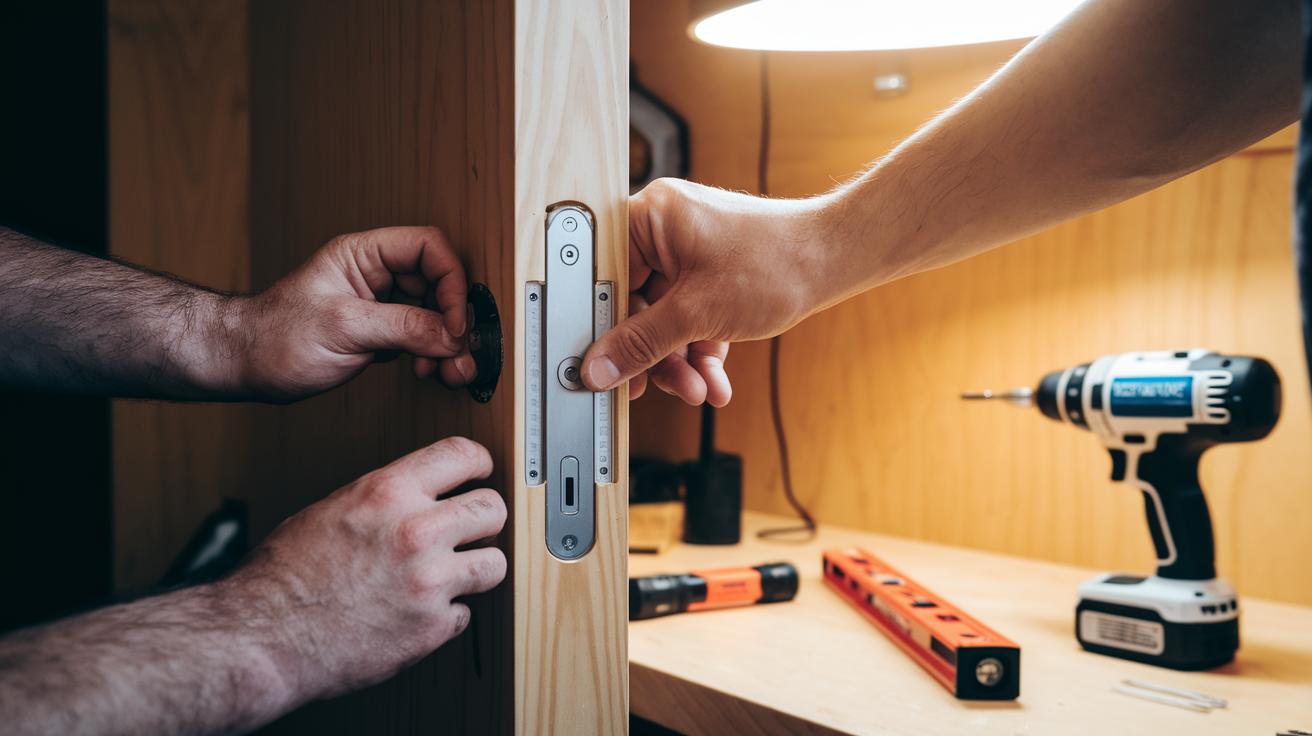
Before you start, make sure your door can handle a digital deadbolt. Check the door’s thickness and the size of the hole where the lock fits. Also, take a moment to review your current setup so you know what to remove and how to replace it properly.
- Gather your tools. You will need a drill, a screwdriver, a level, and any extra parts that come with your kit.
- Remove the old lock. Carefully take out your existing deadbolt and latch so you do not harm the door or its frame.
- Install the new strike plate and latch. Place the strike plate securely and double-check that the latch lines up well with the door frame.
- Mount the interior module. Attach the electronic control unit neatly on the inside of the door. Make sure wires and connectors are easy to access.
- Position the exterior keypad. Line up the keypad on the outside door so that it matches perfectly with the interior module.
- Set up the battery and test the motor. Insert the batteries correctly and run a quick test to check that the motor works as expected.
- Program your keypad code. Use the keypad interface to set a master code that is secure but simple enough to remember.
- Calibrate and test the auto-lock. Adjust the settings and test the lock several times to ensure the auto-lock function works reliably.
During the process, take care not to overtighten screws. Too much force can damage the module or warp the door frame. Keep checking with a level as you work to make sure everything stays aligned, much like hanging a picture straight on the wall. Following these tips will help you finish the installation quickly and safely.
Kwikset Smart Locks Programming: Managing Keypad Codes and Guest Access
TL;DR: Use a strong master code that isn’t obvious and assign unique user codes to keep your lock secure. Temporary guest codes with expiration help manage short-term access.
Your Kwikset smart lock uses a master code as the main key, while individual user codes allow specific access without giving away the master. Pick a master code that’s hard to guess, steer clear of common patterns like 1234 or repeated numbers. Similarly, choose user codes that mix numbers in a way you can remember but others won’t easily crack.
Here’s a simple setup checklist:
• Change the master code first.
• Set up unique codes for each user.
• Update user codes periodically and keep a private record so you don’t lose track.
For example, a non-sequential string of numbers makes for a smart choice if security is a top concern.
To program codes using the touchscreen, press the “Settings” button, enter your master code, and follow the on-screen prompts. Select “Add User Code,” type in your chosen number, and confirm it. This guided process cuts down on trial and error.
If you need to grant guest access, create temporary codes with an expiration time. Just navigate to the guest code section, set the duration for temporary access, and confirm the settings. And if you ever misplace your master code or get locked out, you can use the reset feature and follow the reprogramming manual to regain control.
Kwikset Smart Locks Integration with Smart Home Ecosystems

Kwikset’s official app lets you control your lock easily. You can lock or unlock it remotely, get security alerts, and manage your codes directly from your phone. This system gives you full control with everyday ease and reliable security.
Many models work with Z-Wave, connecting to hubs like SmartThings and ADT, while some use Wi-Fi direct. This means you can set up your smart home entry whether you prefer a hub or a direct mobile connection.
Several Kwikset locks support voice commands with Amazon Alexa, Google Assistant, or Apple HomeKit (on supported models). Just speak a command for hands-free control that makes managing your door a breeze.
You can also schedule automatic locking and unlocking using geofencing. When your phone enters or leaves a set area, the lock adjusts by itself, offering smart convenience and added security.
Kwikset Smart Locks Security and Durability: Encrypted Access and Physical Protection
Kwikset smart locks protect your home with strong wireless encryption. They use AES 128-bit encryption with Z-Wave and secure Wi-Fi connections with SSL/TLS. This makes sure that any data sent between the lock and your devices stays safe and private.
They also come with built-in tamper alarms that alert you if someone tries to force the lock open. The alarm triggers when it senses unusual impacts or attempts to break in, giving you an extra layer of protection.
The locks meet ANSI/BHMA Grade 2 or Grade 3 standards, meaning they have passed tough tests under both steady and changing pressures. This shows they are built to be both secure and durable, so you can trust them to protect your home.
Designed to withstand harsh weather, these smart locks have a weatherproof casing that works well between -22°F and 140°F. Their corrosion-resistant finish keeps them looking good and performing well over time, even in tough conditions.
Kwikset Smart Locks Battery Maintenance and Troubleshooting
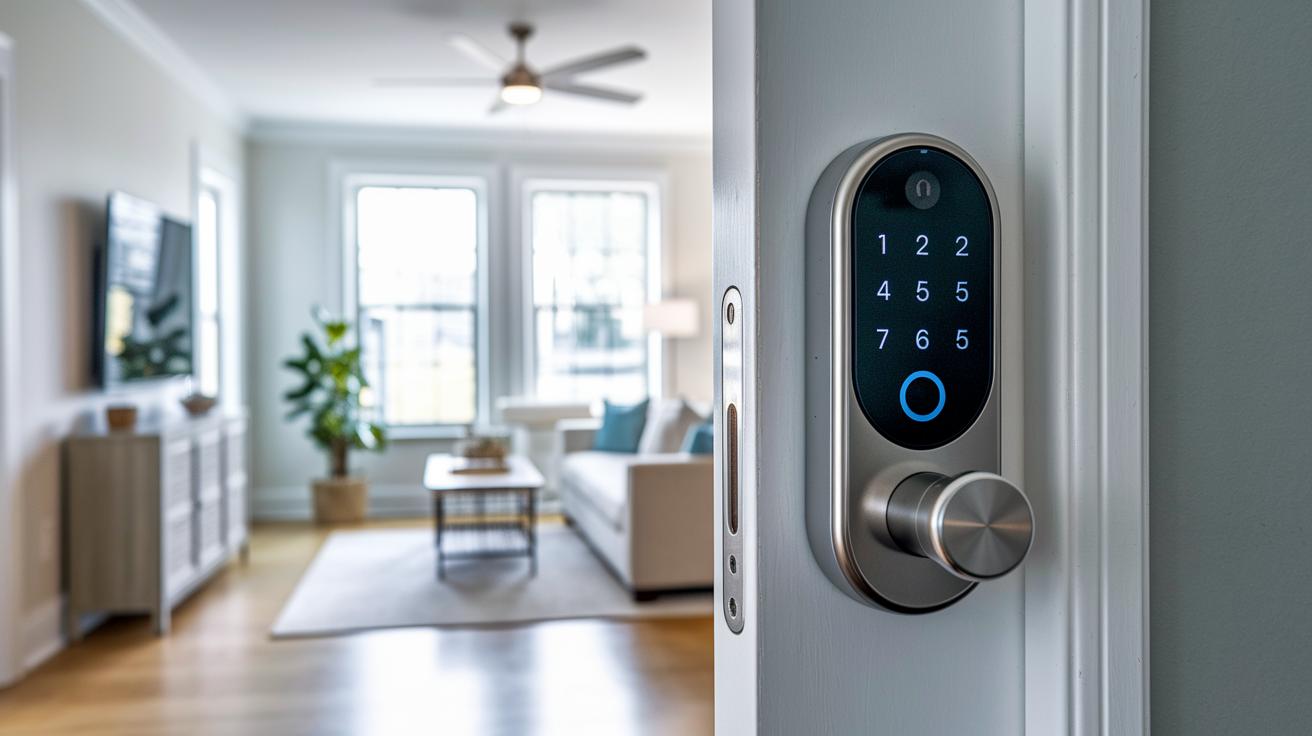
Kwikset suggests using four AA alkaline batteries to keep your smart lock running smoothly. In our tests, these batteries generally last from 6 to 12 months with typical use, and the lock will let you know with a low battery alert. Keeping an eye on that alert can help you avoid any unexpected lockouts.
When you see the low battery signal, it's wise to check the battery performance and replace them as soon as possible. Many users find that following a regular battery maintenance routine saves them time and hassle down the road.
To change the battery pack, first open the battery compartment and remove all four batteries, making sure to note which way they face. Then, insert the new batteries in the same order, close the compartment securely, and give the lock a quick test to confirm that it's working correctly.
If you come across firmware update issues, start by making sure that the mobile app is properly connected. Next, try a simple hardware reset by turning the lock off and then on again, this often clears up any update problems.
Should the keypad become unresponsive, use the remote reset. Just press and hold the reset button until the indicator starts blinking. This will reset the lock to its factory settings, allowing you to reprogram your preferences.
Kwikset Smart Locks vs. Other Brands: Feature Comparison Table
We compared models based on installation, security, connectivity, and price. This guide shows you each lock's strengths and weaknesses in clear terms. We even looked at cost efficiency alongside features like easy installation and advanced re-keying. For more details on our approach, check our guide on how to compare tech products at https://getitreviews.com?p=1626.
| Brand/Model | Connectivity | Unique Features | Pros | Cons |
|---|---|---|---|---|
| Schlage Arrive Smart WiFi Deadbolt | Wi-Fi | Easy installation, sleek design | Quick setup, modern look | Lacks tamper alarm, door-status sensor issues |
| Yale Assure Lock 2 | Bluetooth/Wi-Fi | Stylish keypad design | Attractive design | Challenging flush alignment during installation |
| Aqara Smart Lock U100 | Bluetooth/Apple Home | Fast, quiet fingerprint reader | Smooth operation, secure access | Uses a six-digit PIN |
| Eufy Smart Lock C34 | Built-in Wi-Fi | No external hub needed | Budget-friendly, Matter support with hub | Indoor housing is larger than preferred |
| Yale Approach Lock with Wi-Fi + Keypad | Wi-Fi | Smart upgrade for existing locks | Adds keypad and smart features | Does not support Apple Home |
| Kwikset Flagship | Wi-Fi / Z-Wave options | SmartKey re-keying, touchscreen keypad | Balanced features and cost, reliable performance | Some setups might benefit from professional help |
This chart clearly shows what each lock does best and where it might fall short. If you need a lock that is secure, easy to use, and offers advanced re-keying along with a modern touchscreen, the Kwikset flagship is a standout option. On the other hand, models from Schlage and Yale may better suit users with different installation needs or budget limits.
Kwikset Smart Locks FAQ and Troubleshooting Tips
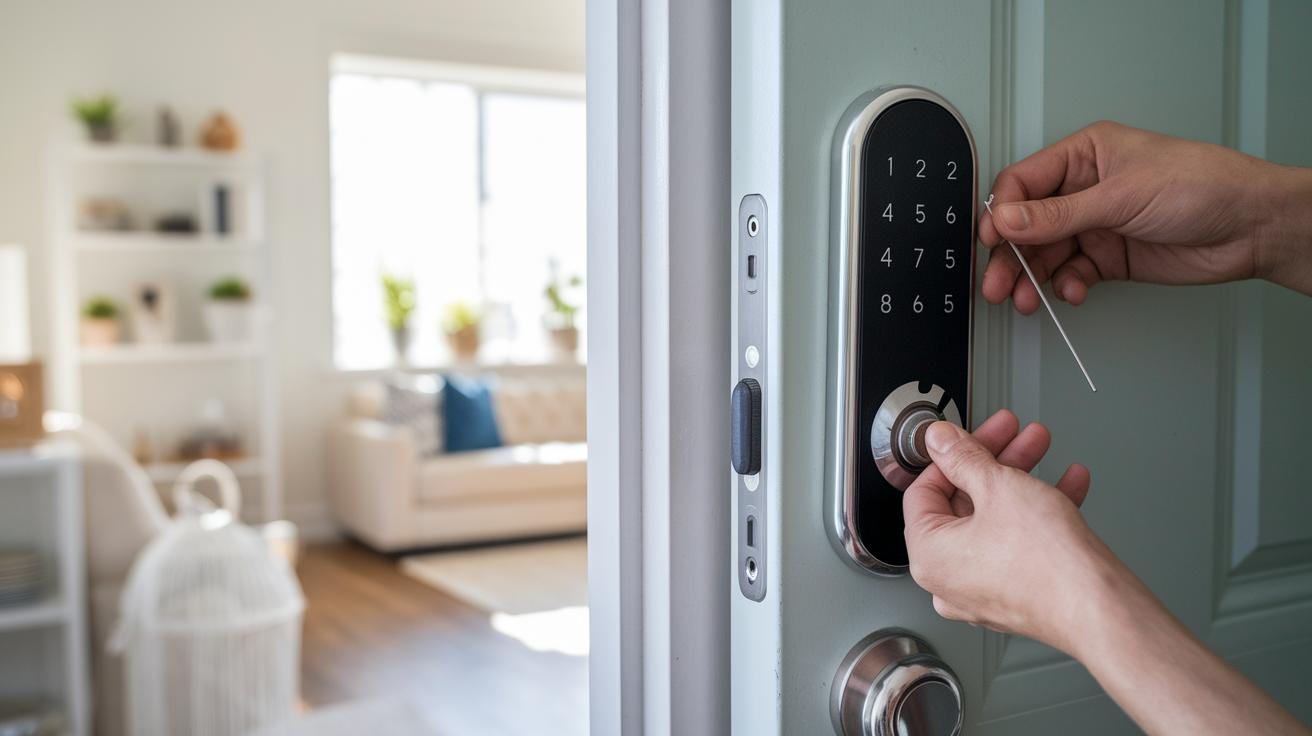
- If your lock isn’t responding at the keypad, check that the batteries are in the right spot and try turning the lock off and on.
- If the app can’t connect, make sure your Wi-Fi signal is strong and restart the app.
- If the battery door feels jammed, double-check the battery placement and remove any blockage.
- If you’ve lost the master code, use the reset procedure to restore the factory settings.
- If the auto-lock feature isn’t engaging, recalibrate the settings through the touchscreen menu.
For connectivity issues, try restarting your router, then power cycle the lock. Next, test another device to confirm your Wi-Fi signal is strong. If the lock still won’t connect, reset its network settings. Each step helps narrow down the problem and guides you through troubleshooting setup errors.
When you see error messages on the touchscreen, like codes E01 or E12, they usually mean there’s a keypad input issue or a Wi-Fi connection problem. Check these codes against the manual to fix the issue quickly.
Final Words
In the action, we broke down Kwikset smart locks by comparing models, pricing, and purchase options. We walked through installation steps, detailed programming and troubleshooting tips, and explained how these locks integrate seamlessly into smart home setups. We also highlighted security features and compared them side-by-side with other brands. This hands-on review gives you a clear picture of performance and practical value. Kwikset smart locks offer a reliable, modern solution for secure access, leaving you with confidence in your purchase decision. Enjoy the improved convenience and peace of mind.
FAQ
What is a Kwikset smart lock and what features does it offer?
The Kwikset smart lock provides keyless entry, secure access, and integration with home automation systems. It offers options like touchscreen keypads, SmartKey rekeying, and various connectivity choices including Wi-Fi for remote control.
Where can I find the Kwikset smart lock manual PDF or keypad lock manual?
The Kwikset smart lock manual and keypad lock manual are available as downloadable PDFs on the Kwikset official website and customer support pages. These guides cover installation, programming, and troubleshooting.
Which is better, Schlage or Kwikset?
The debate between Schlage and Kwikset depends on your needs. Schlage is known for advanced security features, while Kwikset focuses on user-friendly rekeying and connectivity, making each brand suited for different home setups.
How do I reset my Kwikset smart lock?
Resetting your Kwikset smart lock typically involves following instructions in the manual, often using a specific reset button combination. Be sure to check your model’s guide for detailed, step-by-step reset procedures.
Are Kwikset smart locks reliable and secure?
Kwikset smart locks are built for reliability and security with encrypted communication and tamper indicators. User reviews often praise their performance, though regular firmware updates are advised to maintain their security features.
What are the disadvantages of a smart lock?
Smart locks, including Kwikset models, can face challenges like battery dependency, occasional connectivity issues, and susceptibility to technical glitches. It helps to have backup access methods in case of any unexpected issues.
How do I program my Kwikset keypad lock?
Programming a Kwikset keypad lock involves entering the master code, adding or deleting user codes, and following the on-screen instructions. The process, detailed in the user manual, ensures secure and efficient code management.
What features does the Kwikset Halo smart lock offer?
The Kwikset Halo smart lock delivers Wi-Fi connectivity, a responsive touchscreen interface, and remote control via a mobile app. It supports keyless entry, allows monitoring, and integrates with compatible smart home systems for added convenience.