
Ever wondered if a mini PC could be a better match for you than a bulky desktop? TL;DR: Use a clear checklist to pick the right mini PC for your needs, whether it's for work at home, streaming, or gaming.
A simple mini PC checklist will help you cut through the clutter. This guide covers the key points to consider: specs (the technical details that tell you how powerful it is), performance (how fast and smooth it runs), design (how it looks and how easy it is to use), and price. With these smart tips, you can avoid costly mistakes and choose a mini PC that meets all your needs.
Mini PC Buying Checklist: Core Factors Overview
A clear checklist can save you time and help you avoid costly oversights when picking a mini PC. It lets you quickly narrow down your options so you can choose a device that works for you, whether you need it for office work, gaming, home streaming, or even industrial tasks. For more detailed tips, check out this list of questions to ask before buying tech.
- Usage requirements
- Hardware specifications
- Performance benchmarks
- Connectivity options
- Design, size, and cooling
- Budget and pricing tiers
- Warranty and support
- User reviews and upgrade paths
This guide covers the basics you need. Look for a mini PC with at least 8 GB RAM, a 120 GB SSD, and an Intel 6th-gen processor or newer. It should deliver steady performance, and come with key connections like USB, HDMI, DisplayPort, and Bluetooth. The design and cooling are important too, especially if you're planning to use it in a small living room or home office. Price matters, too, most models fall between $200 and $490. Plus, a solid warranty and good customer support can make a big difference over time. Finally, real user reviews, like those for the Minisforum DeskMini UM350, can give you honest insights into how well the mini PC holds up and whether it's easy to upgrade.
The rest of this guide takes a closer look at each of these eight categories to help you match the right mini PC to your needs.
Hardware Specification Checklist for Mini PC Buyers
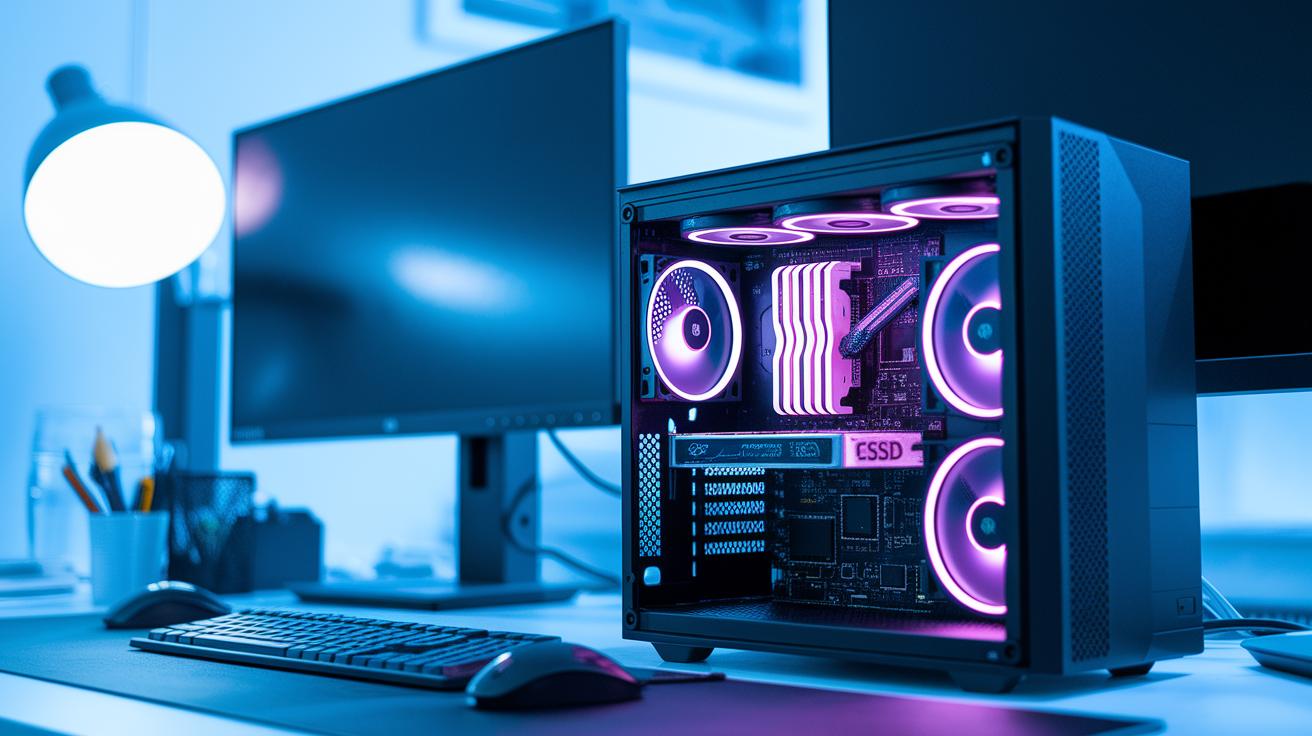
When picking a mini PC, the specs you choose make a big difference in everyday tasks like browsing the web or editing media. The right processor, plenty of RAM, and fast storage help the system run smoothly. For basic use, we suggest having at least 8 GB of RAM. If you plan to use demanding apps or multitask often, go with 16 GB or more. Fast storage is just as important, a minimum of 120 GB SSD works for most users, though many add a second bay to boost capacity later. Options like the AMD Ryzen 5 3550H with Radeon Vega 8 (found in models such as the Minisforum DeskMini UM350) or the powerful Intel 12th-gen Core i9 12900H ensure you have the muscle you need.
| Specification | Minimum | Recommended |
|---|---|---|
| RAM | 8 GB | 16 GB |
| Storage | 120 GB SSD | 256 GB SSD or more |
| Processor | Intel 6th-gen or equivalent AMD | Intel 12th-gen Core i9 / AMD Ryzen 5 3550H |
| Expandability | Single bay | Secondary bay available |
It is also smart to choose a mini PC with a design that lets you easily add more memory or storage later. Look for models with accessible expansion slots or extra bays. This way, you get a system that performs well today and can grow with you over time.
Performance and Benchmark Checklist in Your Mini PC Buying
The heart of any mini PC’s performance is its CPU and GPU. In our tests, systems with an Intel Core i9-12900H (14 cores, 20 threads, 5.0 GHz boost, and 24 MB of L3 cache) handled multitasking and heavy applications with ease. For everyday office work or creative editing, strong scores in Cinebench and PCMark matter a lot. Models with an NVIDIA GeForce RTX 4060 or RTX 3080M and 16 GB of dedicated GDDR6 memory not only support light gaming but also tackle demanding graphics tasks smoothly. It’s like comparing a brisk walk to a sprint, better benchmark scores lead to noticeable speed improvements in your daily tasks.
When you plan to use your mini PC for extended periods, a solid cooling system is a must. Advanced 4D cooling helps keep temperatures in check and prevents throttling during intense work. High scores in tests like 3DMark often mean the design effectively disperses heat. This approach not only keeps the system reliable during heavy use but also helps extend its overall lifespan.
Connectivity Options Checklist for Mini PCs
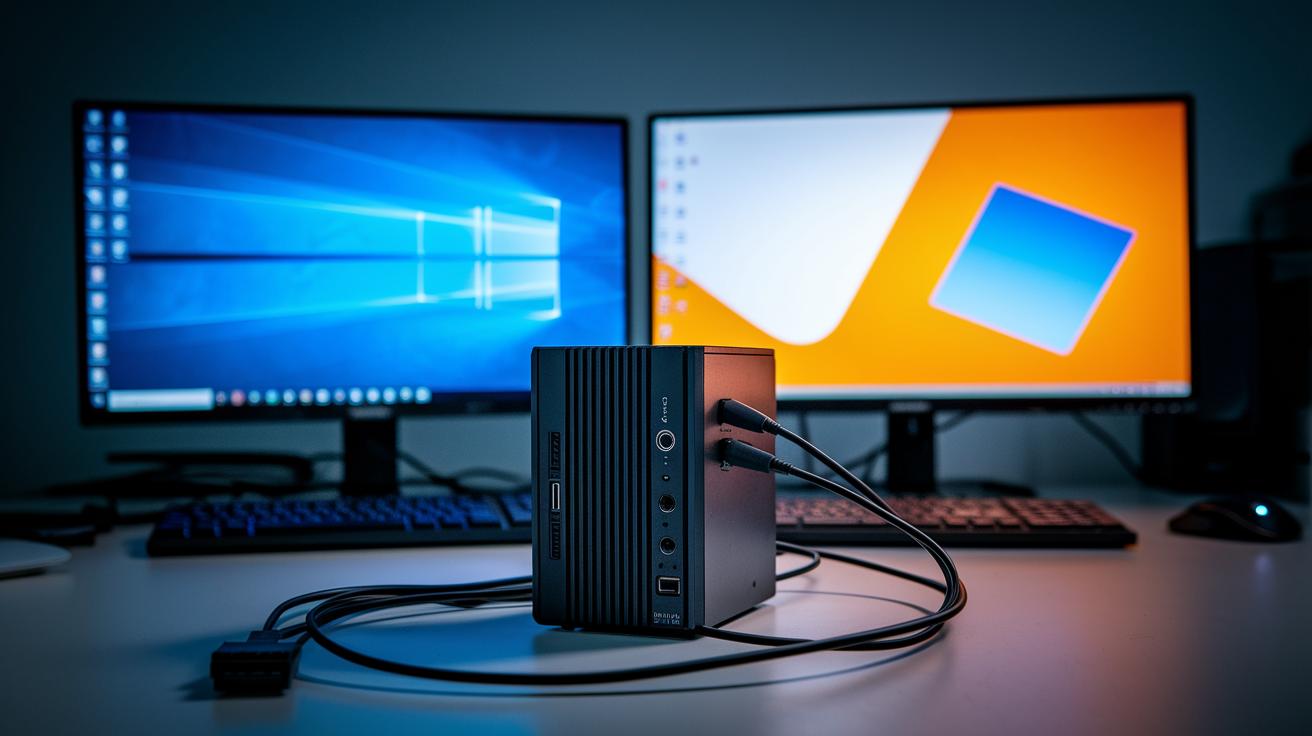
When shopping for a mini PC, make sure it offers a solid mix of wired connections. Look for models with at least four USB ports, including one USB-C port, to easily hook up your peripherals. If you use multiple monitors for work or play, a dual HDMI or DisplayPort setup is essential. Also, don’t skip over gigabit Ethernet for a steady wired network, and check that the mini PC handles external displays and audio outputs smoothly. Think of a system with two video outputs like getting an extra room to spread out your tasks.
On the wireless side, confirm that the mini PC supports Bluetooth 5.0 or higher. Models with Wi-Fi 6 are also worth a look since they keep your connections fast and dependable. If you plan to upgrade later, finding extra expansion slots for additional wireless modules can be very handy. These features come in useful when connecting docking stations or using VR headsets, helping your mini PC grow with your needs.
Design, Size, and Thermal Management in the Mini PC Buying Checklist
A mini PC with a small design works best when space is tight. Look for models that are usually under 2 liters in volume but still deliver enough power for everyday tasks. The materials used in the case matter a lot when it comes to spreading out heat. High-quality metal or sturdy plastic can help cool the system effectively, which is key for a quiet home office or living room setup.
Good cooling helps keep performance steady during long sessions. Many mini PCs now use advanced cooling systems like 4D or vapor-chamber cooling. These setups use smart fan settings and heat pipes to control temperatures even under heavy loads. This technology helps reduce heat buildup and keeps noise low. When checking out a mini PC, note its noise rating, ideally below 30 dB, to make sure it stays quiet during busy use. Trying it out in real-life conditions can be a smart way to see if its performance fits your lifestyle.
Budget and Price Point Considerations in Mini PC Buying Checklist
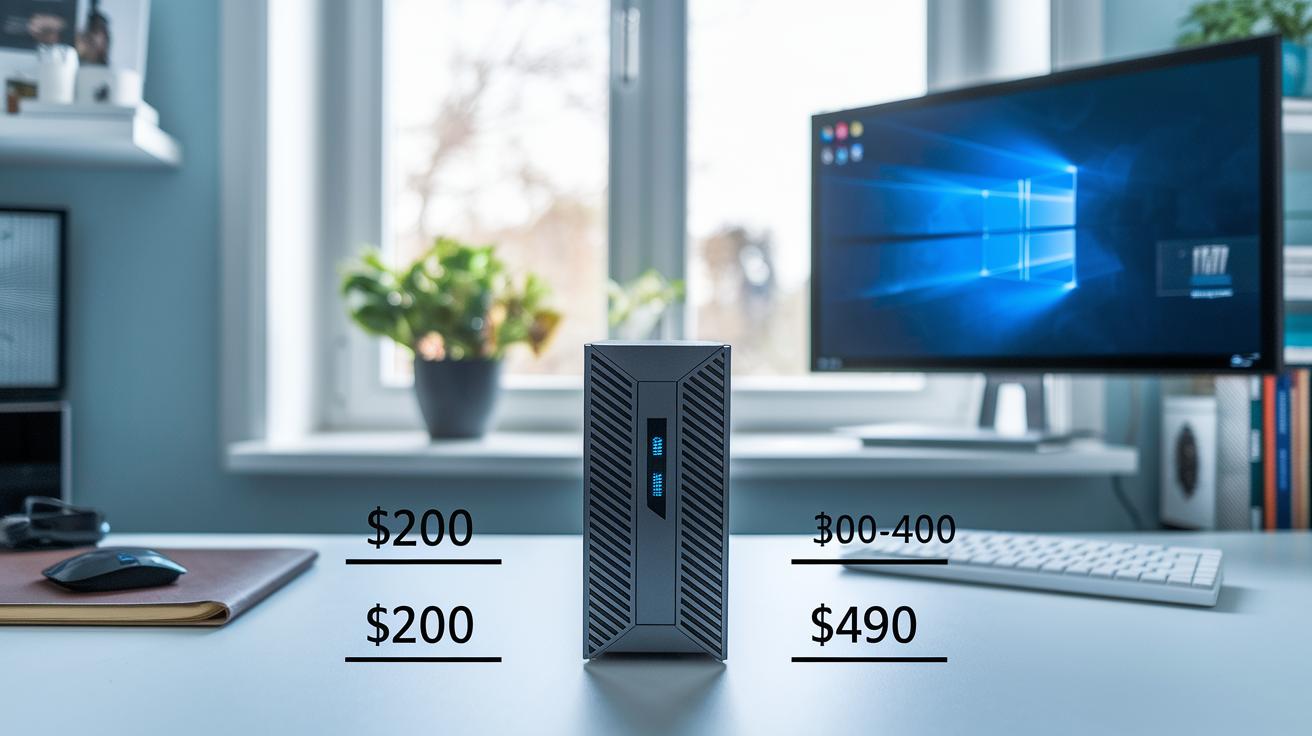
Mini PCs come in a wide range of prices, so it's smart to know your budget early. For light tasks like web browsing and basic document work, you can find a model around $200 that includes a Celeron or N4000 processor, 8 GB of RAM, and a 120 GB SSD.
If you need a bit more power for moderate multitasking and media streaming, mid-range models priced between $300 and $400 usually feature an Intel i3 or i5, or even a Ryzen 5 option. For those with heavier workloads or plans to use a dedicated GPU, prices can go up to about $490.
Some special options are available too. For instance, the CTL Chromebox CBX2 is priced at $294 and the Intel NUC11ATKC4 at $250. These models offer compact performance without stretching your budget too far. Plus, a 30-day price-match guarantee gives you extra peace of mind if you find a lower price elsewhere.
When making your decision, consider that new PCs come with updated hardware and warranty support. Renewed or used devices from trusted brands like Lenovo, HP, or Dell might offer extra value for budget-conscious buyers. And if your needs are simple, a Chromebox running Chrome OS might do the job just fine.
Warranty, Support, and Reliability Checklist for Mini PC Purchases
When you're shopping for a mini PC, it's important to check the warranty and support policies. Most mini PCs come with a one-year limited warranty that you can often extend for extra peace of mind. Plus, a 30-day price adjustment policy is a nice bonus, so if a lower price pops up later, you'll be protected.
Support can vary a lot between brands. For example, companies like Lenovo, HP, and Dell are known for their responsive customer service. Community feedback shows that models such as the Minisforum DeskMini UM350 hold about 95% uptime, which tells you the build quality is solid and reliable.
Taking a close look at the warranty and support details means you'll know repairs or replacements will be handled smoothly and you'll get the right level of customer care throughout your mini PC's life. This extra step can really improve your overall buying experience.
User Reviews and Real-World Feedback in Mini PC Buying Checklist
When buying a mini PC, user reviews can be a real lifesaver. They help check the claims made by manufacturers and reveal any hidden issues. Reading posts from tech forums and genuine buyers gives you a clear picture of how the mini PC handles everyday tasks.
People who have used these systems share helpful tips on performance, upgrade ease, and customer support. Detailed reviews with benchmarks and hands-on tests back up their claims and guide you to a more confident choice.
Many users point out that models like the Minisforum DeskMini UM350 keep cool even under heavy use and run quietly. They also mention that Linux, especially with versions like Xubuntu or Kubuntu on lower RAM setups, runs smoothly and that upgrading the RAM and SSD is simple. Some feedback does note limits in Wi-Fi range, so it is wise to test wireless performance in real settings before you buy.
Final Mini PC Selection Checklist: Putting It All Together
- First, decide what you'll use your mini PC for, whether it's office work, gaming, or streaming media.
- Make sure the CPU and GPU can handle the programs you need.
- Look for at least 8 GB of RAM and a 120 GB SSD, with some extra room for upgrades.
- Check benchmark tests like Cinebench or PCMark to see how it performs in everyday tasks.
- Confirm that it has the right ports (USB, HDMI, DisplayPort) and modern wireless features like Wi‑Fi 6 and Bluetooth.
- Ensure the mini PC fits your space and that its cooling system keeps it quiet and cool during heavy use.
- Compare models in your budget so you avoid any compromises that might affect long-term use.
- Choose a unit with at least a one-year warranty and reliable customer support.
- Read user reviews to catch any issues or hidden benefits that test scores might not show.
- Verify the system is compatible with your preferred OS (like Windows or Linux), supports extra monitors, and offers future upgrade options.
Follow these steps and refer back to detailed performance and design notes to steer clear of common pitfalls when picking your mini PC.
Final Words
In the action, we broke down the core elements from usage to performance to connectivity and design, showing how each factor plays a role in your decision. Small details like warranty, support, and real user feedback make a real difference when reviewing specs and price points. This guide offers a clear mini PC buying checklist that keeps you on track and prevents oversights. Test each checkpoint and choose wisely. The process is simple, transparent, and sets you up to enjoy a smart, confident purchase.
FAQ
What does the mini PC buying checklist PDF offer?
The mini PC buying checklist PDF offers a clear guide that covers key evaluation points like usage needs, hardware specs, connectivity, and budget to help you compare different mini PC models effectively.
How can Reddit help with a mini PC buying checklist and guide?
The mini PC buying checklist on Reddit combines user experiences and expert tips, providing real-world insights and community advice to help you narrow down choices based on practical needs.
What is the best mini PC buying checklist available?
The best mini PC buying checklist covers a range of vital factors, including performance, design, specs, and user reviews, offering a balanced approach for comparing models and making an informed decision.
How does a gaming mini PC buying checklist differ from a standard guide?
The gaming mini PC buying checklist zeroes in on graphics performance, cooling efficiency, and benchmark scores to ensure the system can handle high-demand gaming tasks smoothly.
What details are covered regarding the MINIX Mini PC in the checklist?
The MINIX Mini PC checklist evaluates core aspects like hardware specifications, connectivity options, and overall design, similar to other models, to help you gauge its suitability for your specific use cases.
How does the mini PC comparison chart help in making a buying decision?
The mini PC comparison chart presents side-by-side details of specs, performance figures, and pricing, making it easier to quickly identify differences and choose the best option for your needs.
What makes a mini PC with Oculink stand out according to the checklist?
The mini PC checklist highlights models with Oculink for their advanced connectivity and faster external drive support, ensuring enhanced data transfer speeds and versatility for demanding tasks.