
TL;DR: NVIDIA Super Resolution uses smart AI to boost game graphics, making a 1080p game look nearly 4K. It's easy to use and works with RTX 30 and 40 Series GPUs, along with popular browsers like Chrome and Edge.
Have you ever thought a 1080p game could suddenly shine like a 4K masterpiece? NVIDIA Super Resolution does just that by lifting extra details from compressed video. It acts like a talented artist, sharpening textures and adding a burst of color to your games. This tech works on RTX 30 and 40 series GPUs and is even available in browsers such as Chrome and Edge. The result is a more lively and immersive gaming experience that makes every session feel extra vibrant.
NVIDIA Super Resolution: Energizing Game Graphics
NVIDIA Super Resolution uses AI to boost video quality by transforming 1080p or lower-resolution content into sharp 4K images. It is designed for RTX 30 and 40 Series GPUs that use Tensor cores and works in browsers like Chrome and Edge. Imagine enjoying your favorite game stream where even low-res scenes burst with unexpected details.
This feature combines two key AI techniques: detail restoration and HDR10 tone mapping. Detail restoration refines edges and recovers textures lost during compression, leaving videos with a cleaner, crisper look. HDR10 tone mapping expands the color range in standard videos so you see deeper blacks and brighter highlights, much like adjusting the contrast on an old photo until it pops.
Real-time performance is a big win on RTX-powered PCs. The AI enhancements work smoothly in media apps and game preview windows, so the upscaling doesn't slow you down. By applying super resolution and HDR improvements together, visuals become smoother and colors come to life, making every gaming session more immersive and vibrant.
Comparing NVIDIA Super Resolution with DLSS and Traditional Upscaling

When you look at different upscaling methods, you can compare three main approaches: basic edge-detection filters, DLSS that rebuilds images using game data, and NVIDIA Super Resolution which uses AI. Each method works a bit differently based on what you are viewing and whether you need fast performance or high image quality. Basic upscaling often makes images look blocky because it relies on simple filters. DLSS improves this by using game data like motion details, but NVIDIA Super Resolution uses a neural network to sharpen compressed videos, making it a solid choice for video playback and mixed content.
- Input scope: Basic upscaling and DLSS focus on improving game frames, while Super Resolution can work with any video stream.
- Artifact reduction: Basic methods use simple filter tricks that can leave unwanted marks. DLSS uses extra game data to smooth transitions, and Super Resolution uses AI to bring back lost details and lower compression errors.
- Hardware requirements: DLSS only works with games on certain GPUs. Super Resolution is designed for RTX 30 and 40 Series GPUs and will even work in browsers like Chrome and Edge.
- Performance and quality trade-offs: Both DLSS and Super Resolution balance real-time speed with clear, crisp images. Basic upscaling usually picks speed over quality, which can show off noticeable artifacts in busy or detailed scenes.
Setting Up NVIDIA Super Resolution: Requirements and Installation
Before you begin, make sure your PC meets the minimum requirements. Your computer must run Windows 10 or 11 (64-bit) and have a GeForce RTX 30 or 40 Series GPU. You also need an NVIDIA driver version 528.49 or higher so your GPU can handle advanced upscaling. Checking these details early helps avoid issues later.
Next, update or download the latest NVIDIA App beta (version 1.0.6.0 or later) to access the RTX Video Super Resolution feature. This update not only brings the upscaling function to your system but also adds performance improvements and handy troubleshooting tools. With the current driver and app updates installed, you can use AI to enjoy clearer images and smoother video.
Finally, open the GPU Control Center and go to the Displays section to set your resolution, refresh rate, and screen orientation. Find the RTX Video Super Resolution toggle and turn it on. We suggest testing the feature with a few different video streams to ensure that your images are sharper and compression artifacts are reduced.
Performance Modes and Tuning Strategies for NVIDIA Super Resolution
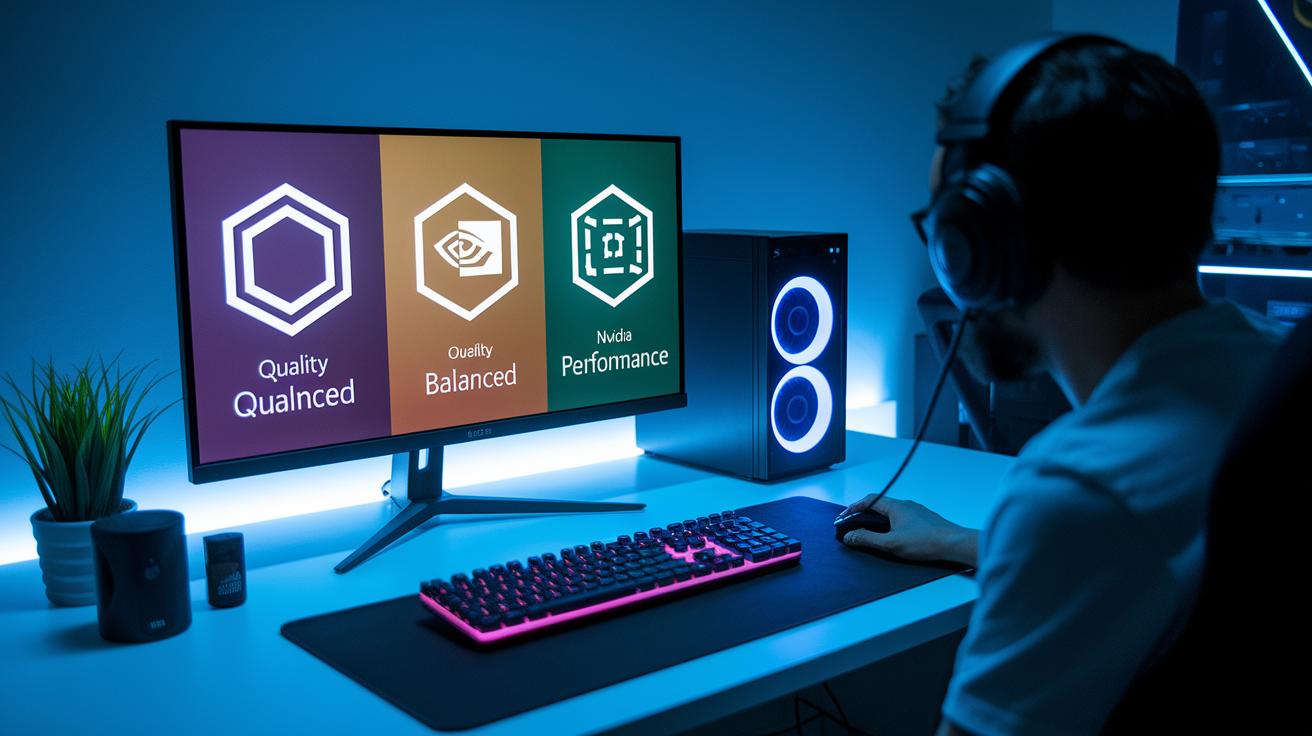
Picking the right performance mode is key to balancing clear image quality with smooth, high frame rates during gaming. NVIDIA Super Resolution gives you three preset modes that adjust the AI settings to match your needs, whether you prefer detailed visuals or faster performance.
The Quality mode uses the most advanced AI to bring out every detail in your game. This is great for cinematic streams or when you want your textures to pop, even if it means the GPU works a bit harder. For everyday media or when your system has limited resources, the Balanced mode offers a happy medium. It keeps images sharp without putting too much stress on the GPU. And if you are after speedy gameplay in competitive or VR setups, the Performance mode cuts down on extra processing to help maintain high frame rates. No matter your setup or gaming style, there’s a setting that fits your needs.
| Mode | Intended Use | Trade-Off |
|---|---|---|
| Quality | Cinematic streams, high-detail footage | Higher GPU load |
| Balanced | Everyday media playback | Moderate GPU load |
| Performance | Competitive or VR scenarios | Minimal GPU overhead |
Control Panel and In-App Settings for NVIDIA Super Resolution
The updated GPU Control Center now shows all the key settings in one clear spot. You can quickly adjust the resolution, refresh rate, and screen orientation, even when you’re in the middle of a game or watching media. The design is simple and clean, making it easy to tweak your display settings at a moment’s notice. Upcoming updates will add extra options like G-SYNC, surround settings, and custom resolutions so you can fine-tune your visual experience even more.
In the same Controls tab, there’s a sharpening slider that lets you boost edge clarity for crisper images. This tool helps clear up soft visuals and brings out more details in your game graphics. You can also easily switch between portrait and landscape views with the orientation toggle to set up your display just right. The resolution and refresh rate toggles are built to match your media needs, ensuring the best viewing experience every time.
Real-World Applications and Use Cases for NVIDIA Super Resolution

Video Streaming Scenarios
When watching shows on Netflix or videos on YouTube in browsers like Chrome or Edge, NVIDIA Super Resolution really steps up the game. It takes regular 720p or 1080p streams and boosts them to almost 4K quality with added real-time HDR that brings out brighter colors and sharper edges. In everyday viewing, this means you see fewer compression glitches and smoother scene transitions, even when the bitrate is low. Viewers will notice deeper colors and finer details, making their streaming experience feel more vibrant and immersive.
Creative and VR Previews
Editors and content creators will find this feature especially useful during daily reviews and live visual simulations. NVIDIA Super Resolution gives you a real-time 4K HDR preview in creative tools, which cuts down on artifacts and restores textures that might have been lost. In VR mode, the technology refines textures and enhances color accuracy, offering a clearer picture of your work. This boost lets artists and developers maintain their creative vision without sacrificing performance in projects that require demanding visuals.
Troubleshooting NVIDIA Super Resolution Issues
First, make sure your PC is ready for NVIDIA Super Resolution. If you don’t see the feature or notice unusual color shifts, your system might not meet the requirements. Check that your GPU driver is version 528.49 or newer and that you have updated to NVIDIA App beta version 1.0.6.0 or later. In our tests, systems missing these updates never showed the advanced upscaling options. Think of it like making sure your car has fresh oil before a long road trip.
Next, take a look at your browser settings if you’re using Chrome or Edge. Hardware acceleration needs to be enabled for smooth performance, and your browser should be up to date. In our setup, using older browser versions caused flickering or incomplete rendering of AI-enhanced streams. Try adjusting these settings like you would fine-tune your TV’s picture to clear up any issues.
Finally, remember that beta software often has its quirks. Some users have noticed that the feature falls back to native resolution when it struggles with certain videos. If you run into persistent issues, switch back to native resolution until the next update arrives. This is similar to turning off turbo mode for a more reliable drive when conditions aren’t ideal.
Final Words
In the action, this guide broke down what nvidia super resolution is and how it works. It showed you how to set it up on RTX-powered systems and compared it to alternatives. We covered the tuning options, control panel tweaks, and real-life benefits in video streaming and VR.
Every section aimed to save time and money by clearing up the tech so you can make smart choices. Enjoy sharper visuals and a smoother experience every time.
FAQ
Nvidia super resolution reddit
Discussions on Reddit about NVIDIA Super Resolution reveal real-world user experiences, troubleshooting tips, and performance insights shared by the community that help newcomers understand how the feature works.
NVIDIA Super Resolution on or off
Selecting to turn on NVIDIA Super Resolution means enabling enhanced upscaling for video and media, while leaving it off restores native resolution settings based on your system performance and clarity preferences.
NVIDIA Super Resolution quality 1 to 4
NVIDIA Super Resolution quality settings, ranging numerically, adjust the balance between detail restoration and GPU load, allowing users to prioritize either maximum clarity or optimized performance depending on their workload.
NVIDIA Super Resolution how to enable
Enabling NVIDIA Super Resolution is done via the NVIDIA Control Center or the dedicated NVIDIA App; users need to update drivers and navigate to the display settings to toggle the feature on.
NVIDIA Super Resolution YouTube
Using NVIDIA Super Resolution on YouTube helps upscale lower resolution streams to near-4K quality, resulting in sharper images and improved detail during video playback.
NVIDIA Super Resolution Chrome
NVIDIA Super Resolution on Chrome upscales video streams in real time, providing enhanced clarity and smoother visuals on supported hardware and browsers tailored for media consumption.
NVIDIA Super Resolution GPU priority
NVIDIA Super Resolution manages GPU priority by allocating resources efficiently, ensuring that upscaling tasks enhance image detail without significantly impacting overall system performance.
NVIDIA Super Resolution VLC
When used with VLC, NVIDIA Super Resolution upscales video content during playback, sharpening image edges and reducing artifacts to deliver a clearer viewing experience on compatible systems.
Should I turn on Super Resolution in NVIDIA?
Turning on NVIDIA Super Resolution can improve image clarity in supported video and media applications, offering enhanced details if your hardware meets the necessary requirements and workload demands.
What is DLSS 4.5 Super Resolution?
DLSS 4.5 Super Resolution is NVIDIA’s advanced AI-driven upscaling technology that refines gaming and video content by reconstructing higher resolution images with improved detail and performance.
How to turn on nvidia dlss Super Resolution?
To activate NVIDIA DLSS Super Resolution, update your NVIDIA driver and open the NVIDIA App to locate and enable the feature through the designated settings in the GPU Control Center.
Does DSR affect performance?
DSR (Dynamic Super Resolution) impacts performance by rendering games at higher resolutions before downscaling to your display, which can lower frame rates if the GPU is pushed beyond its optimal workload.